Add a New Tenant Profile
Learn how to create a complete tenant record, including contact, pet, vehicle, reference, and income details.

Durga B
Last Update há 3 meses
1. Start by exploring the General dashboard for an overview of your rental property portfolio.

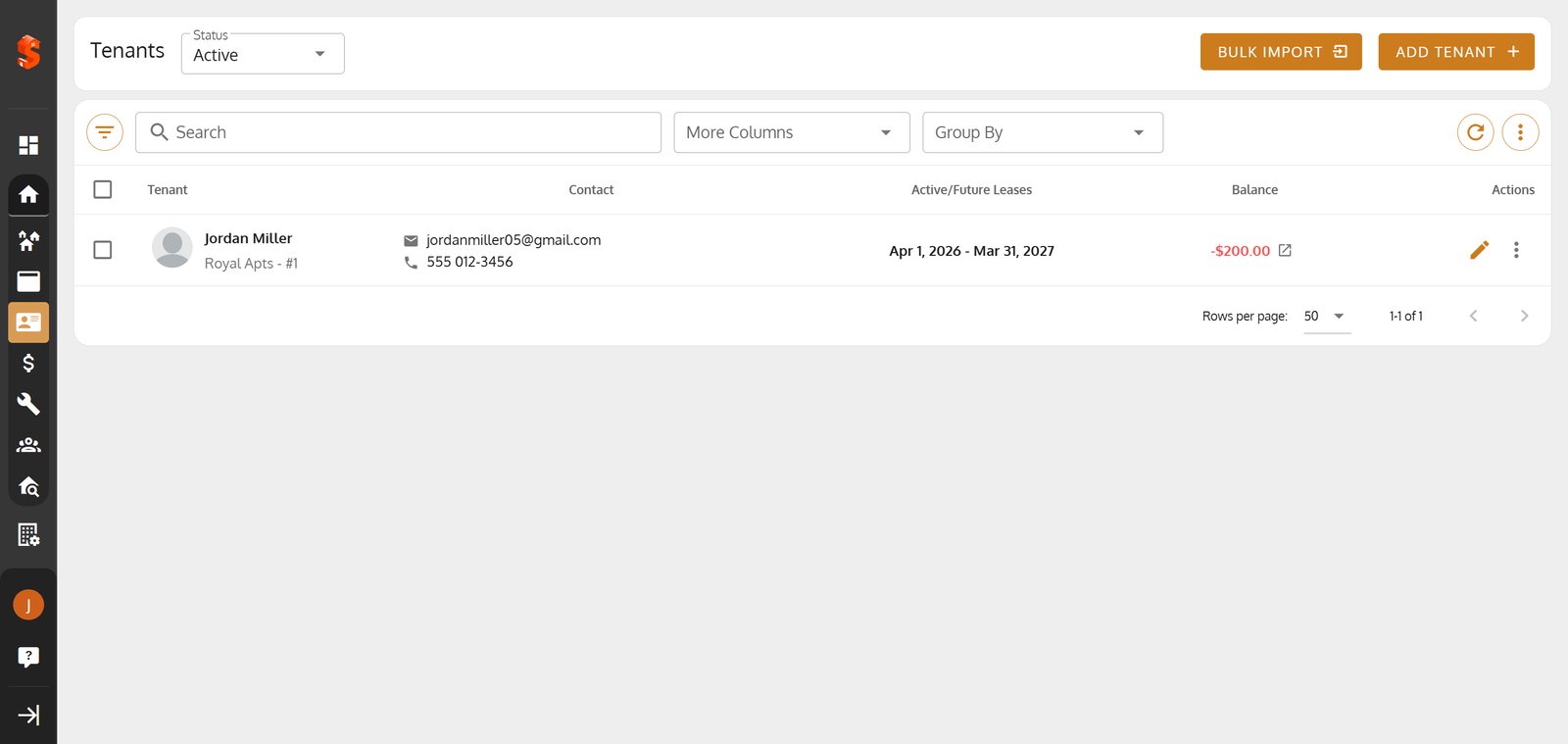
2. Head to the 'Tenants' menu to manage and organize tenant records with ease.

3. Click 'Add Tenant' to begin creating a new tenant profile in the system.

4. In the General Info section, Select the property for your new tenant to ensure accurate record keeping.

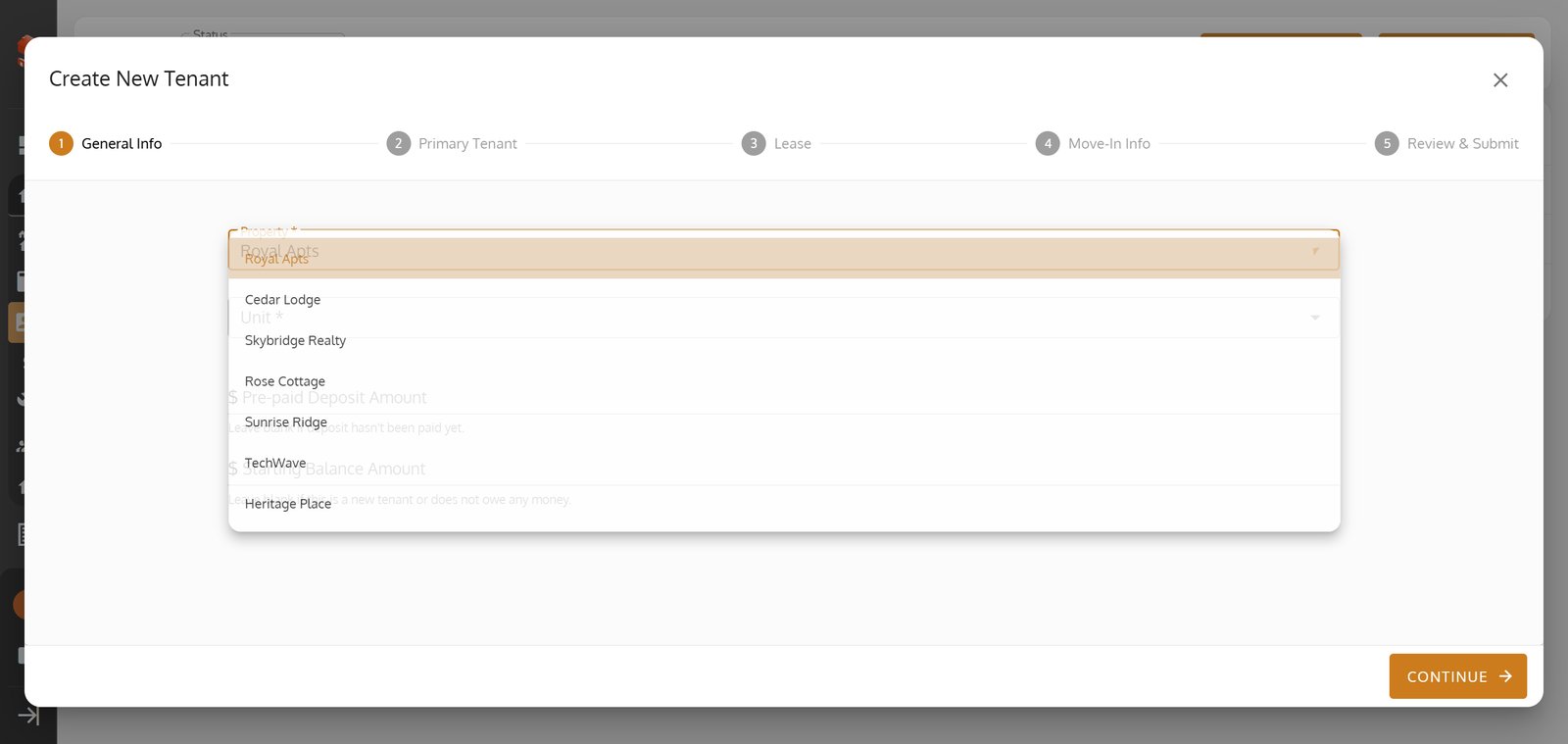
5. Choose the Property from the drop down lisy

6.select the specific Property that Tenant occupy
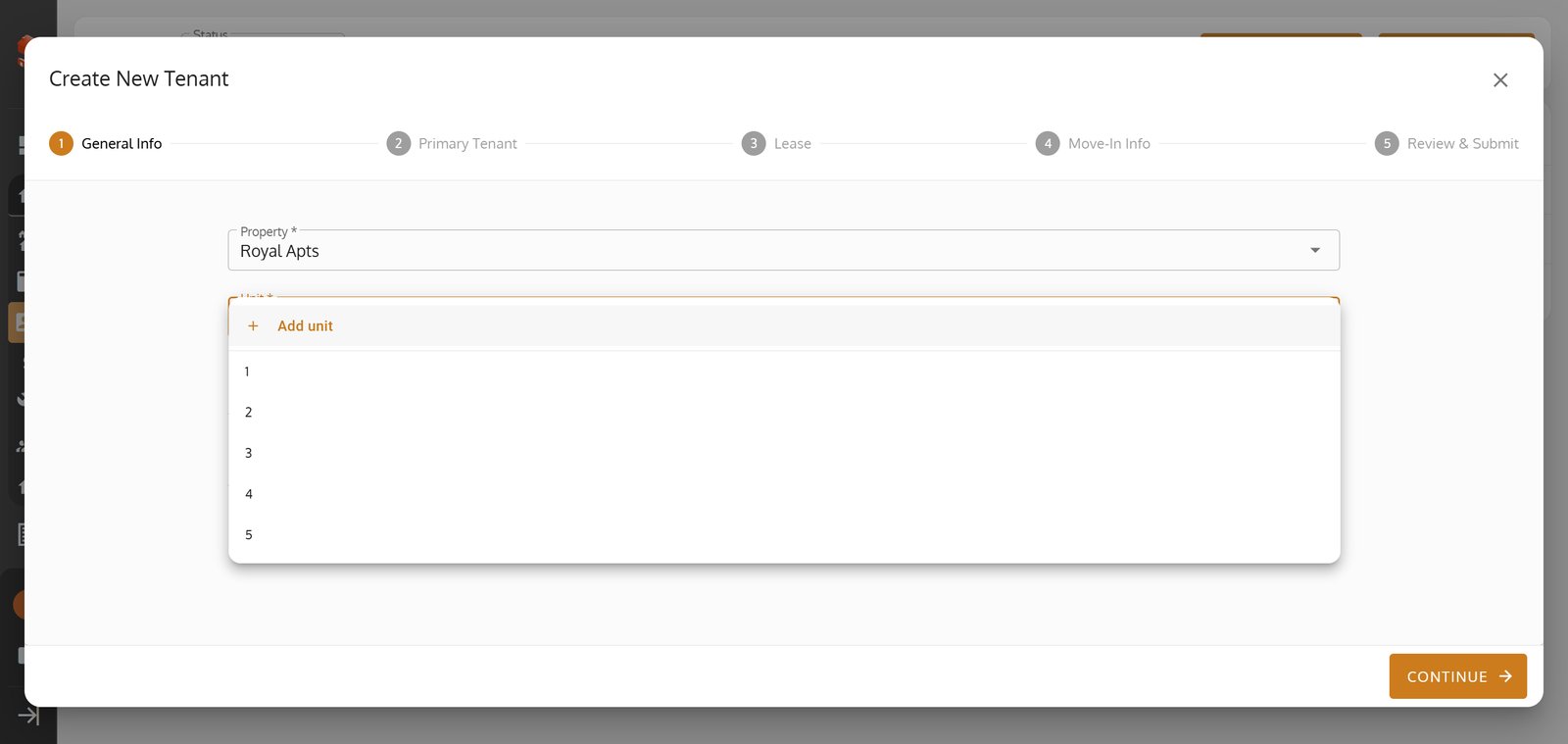
7. select the specific Unit that Tenant occupy.
8. Enter a pre-paid deposit to safeguard your property investment.

9. Click the 'Continue' button to proceed to detailed tenant information.

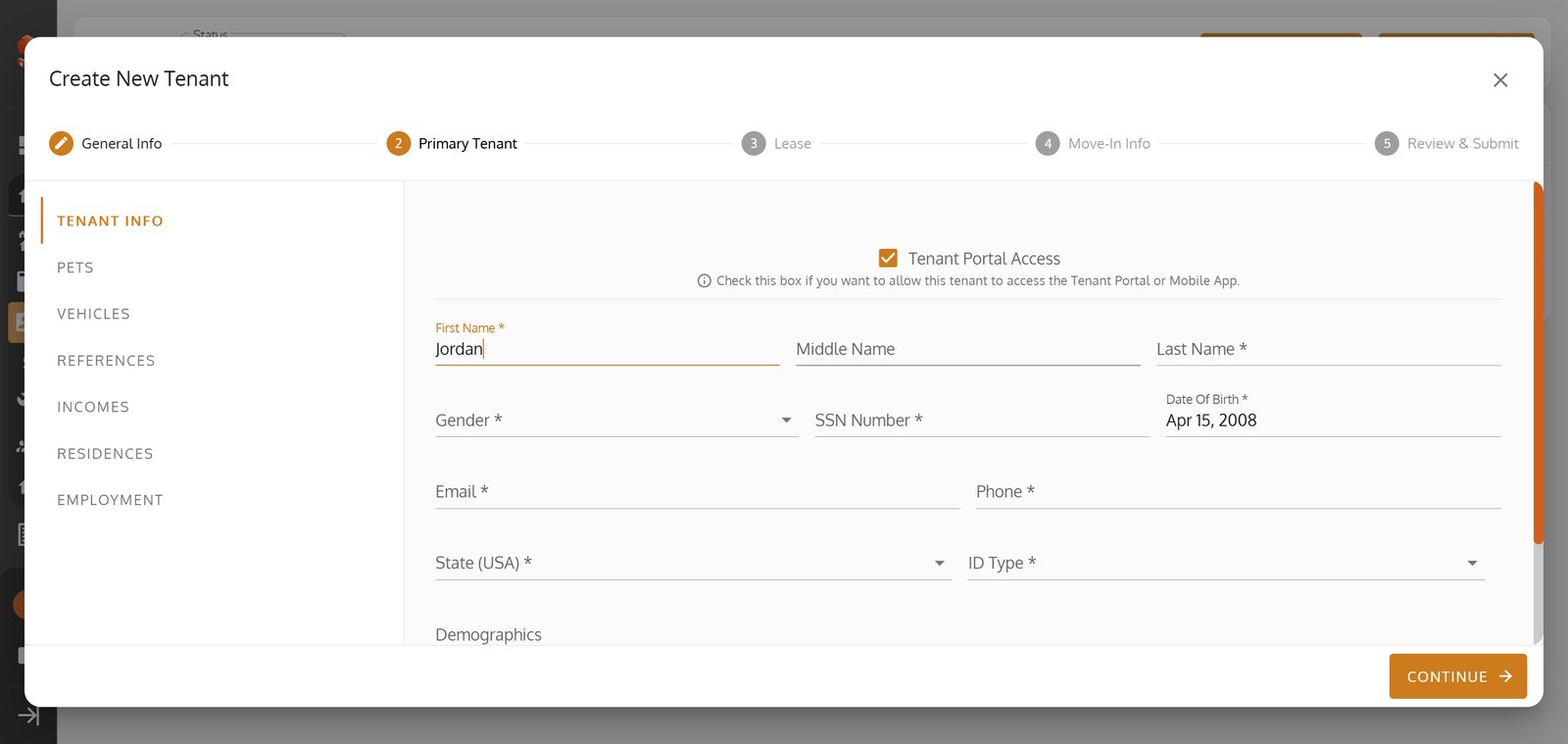
10. Enable Tenant Portal Access to offer your tenant digital convenience from day one.

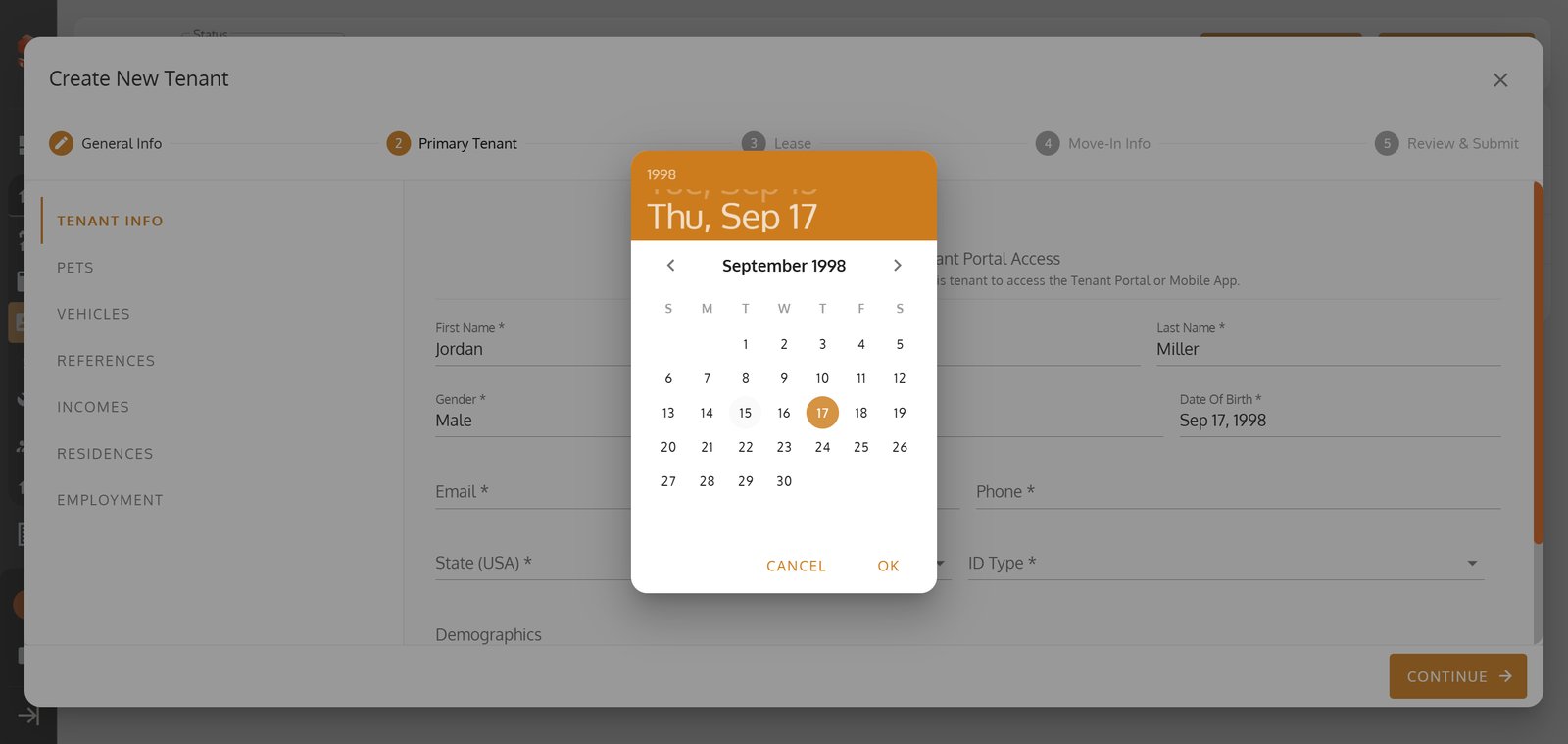
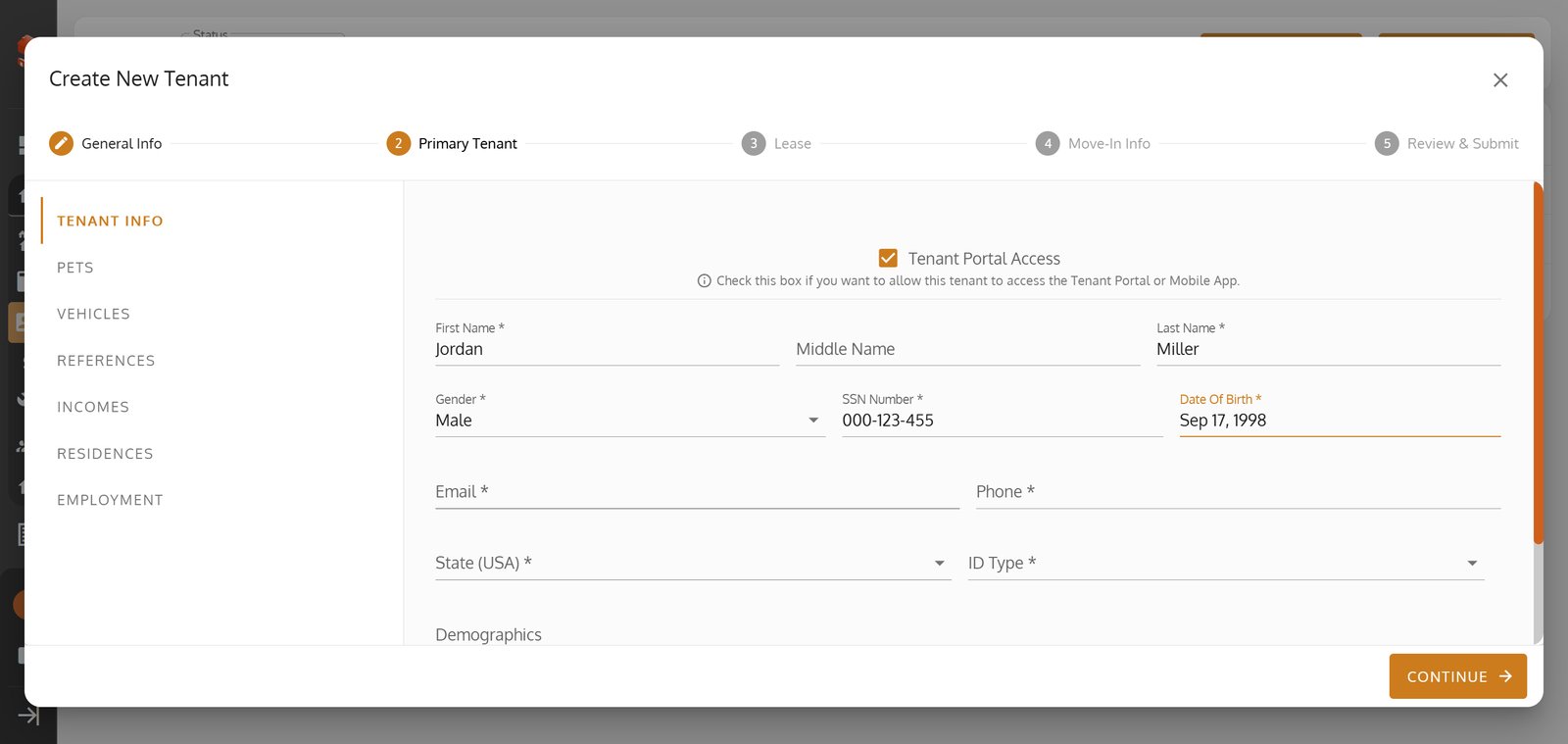
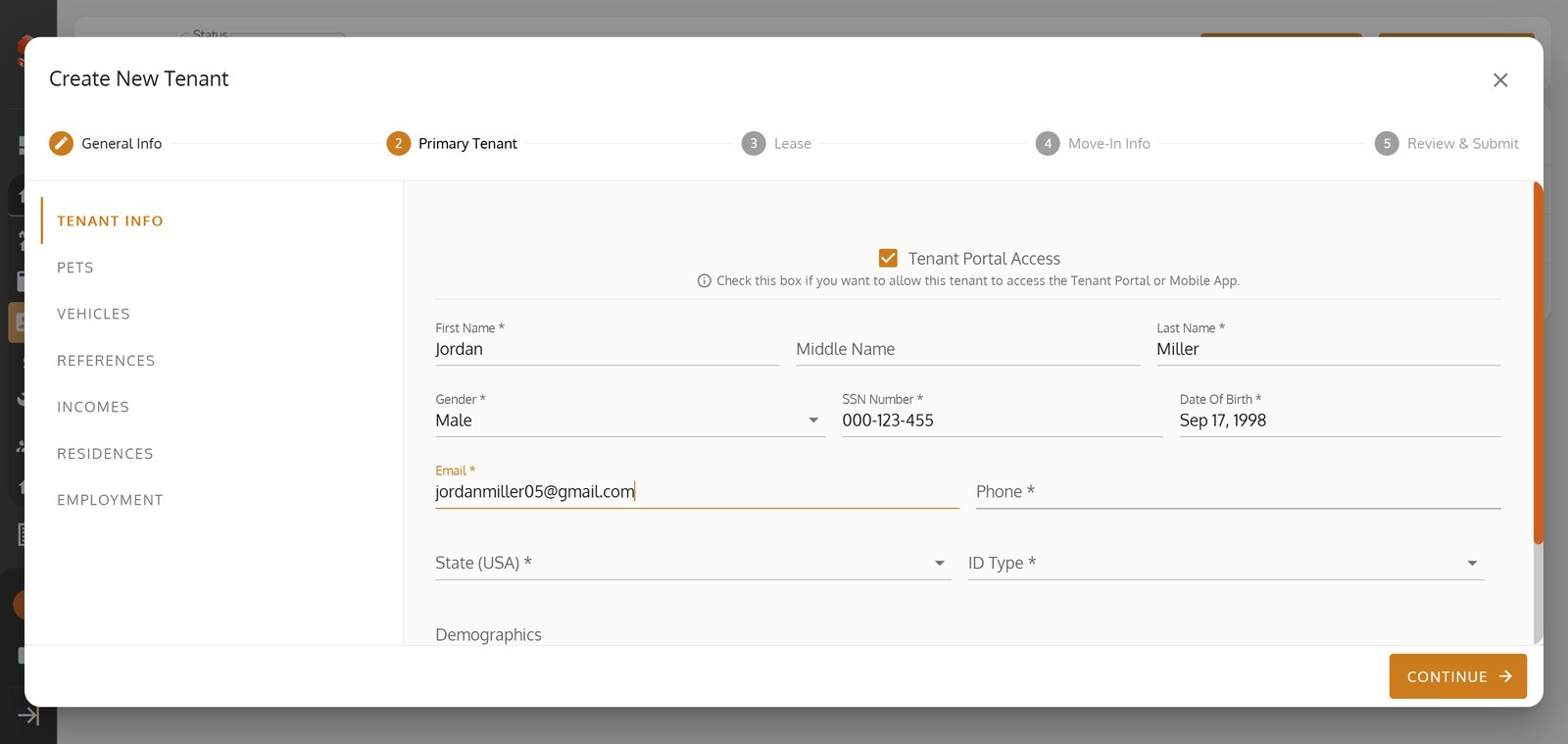
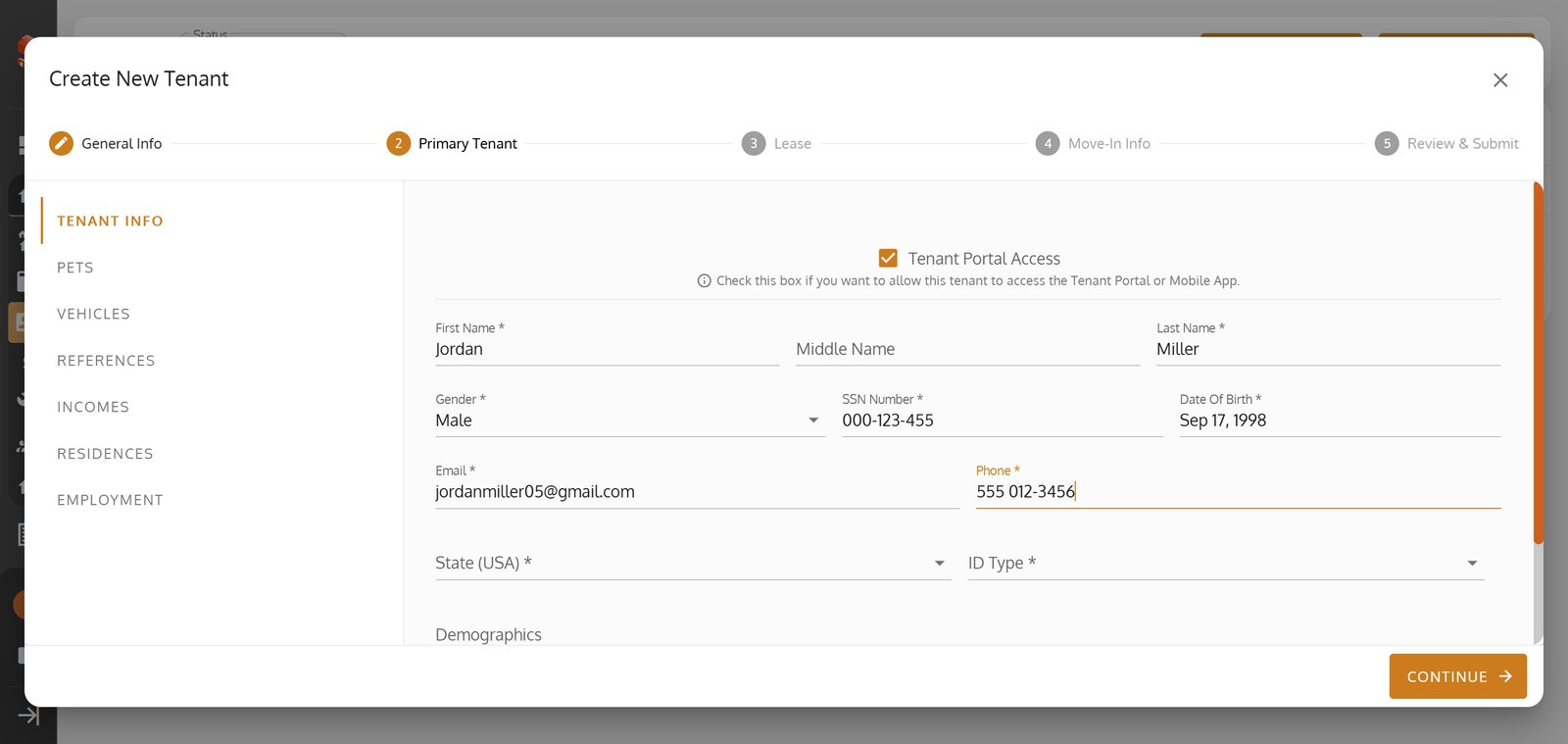
11. Start filling out the primary tenant's details.

12.
13.
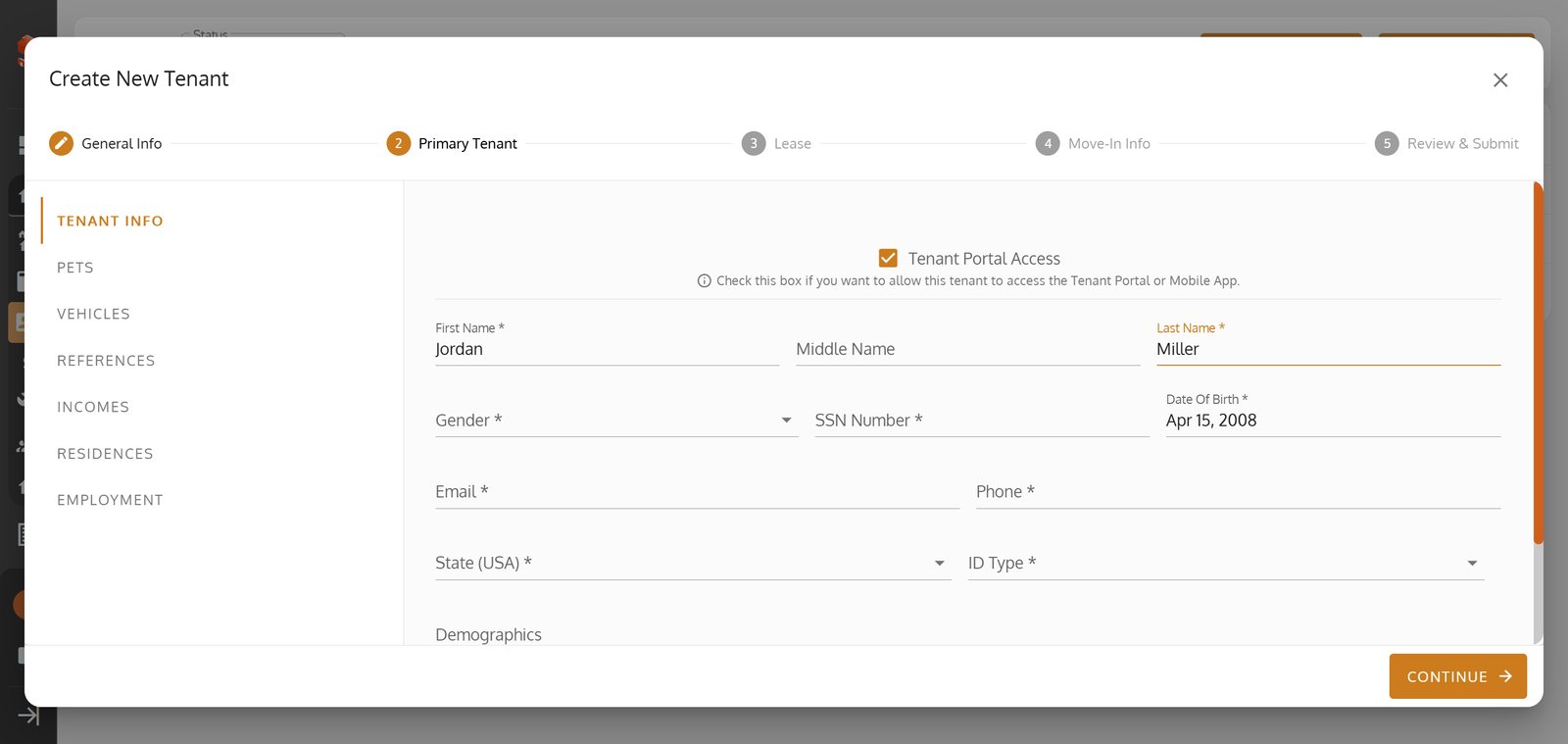
14.
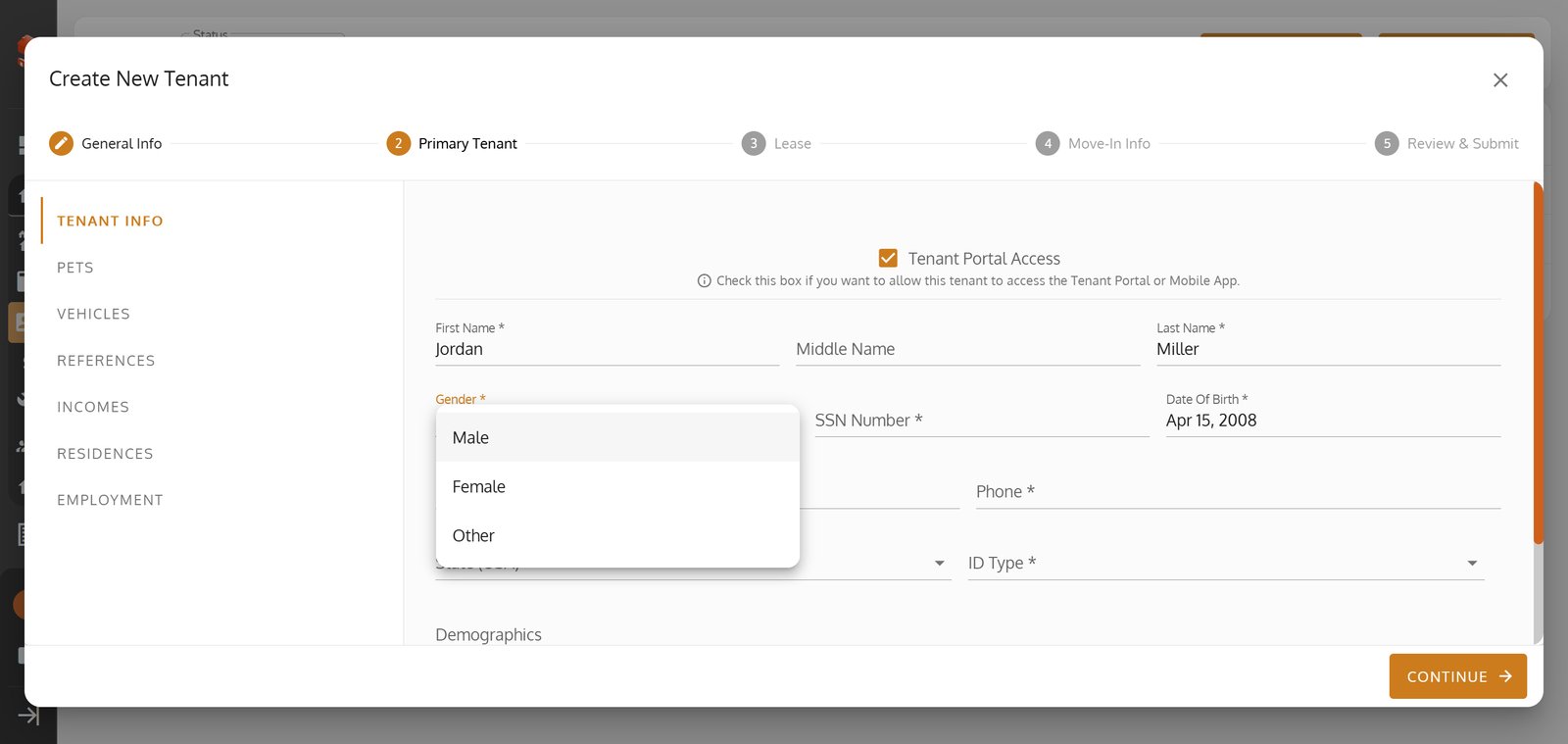
15.
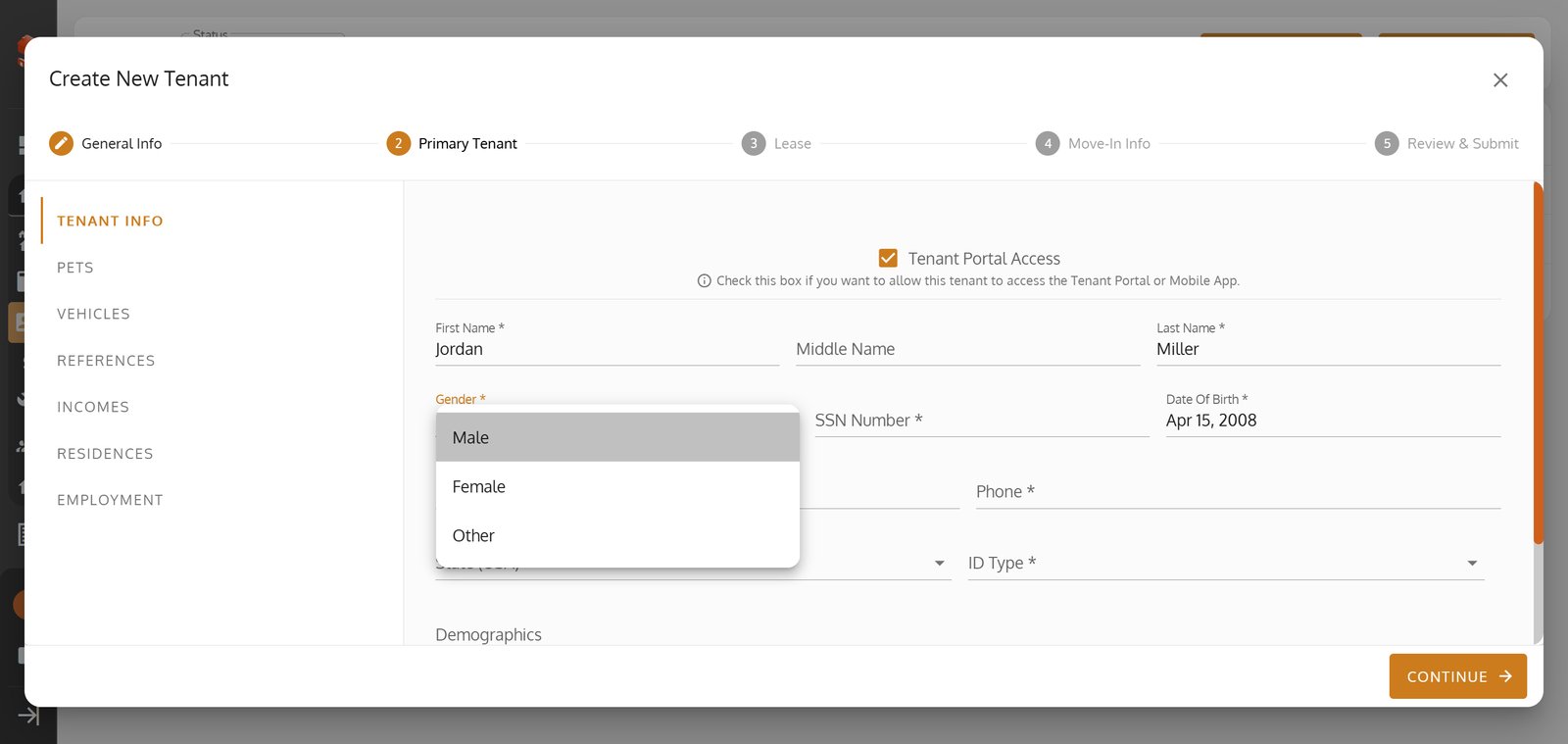
16.
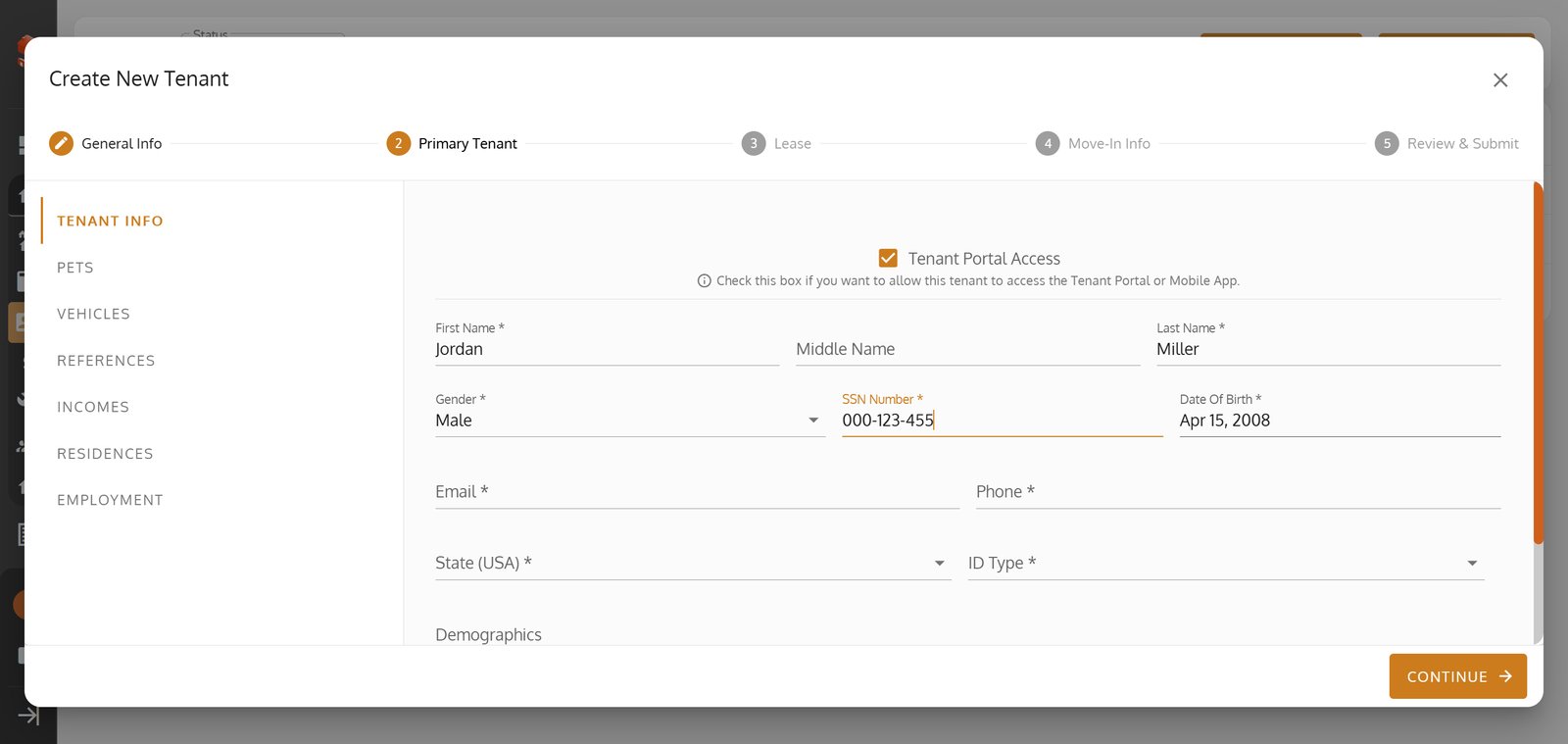
17.
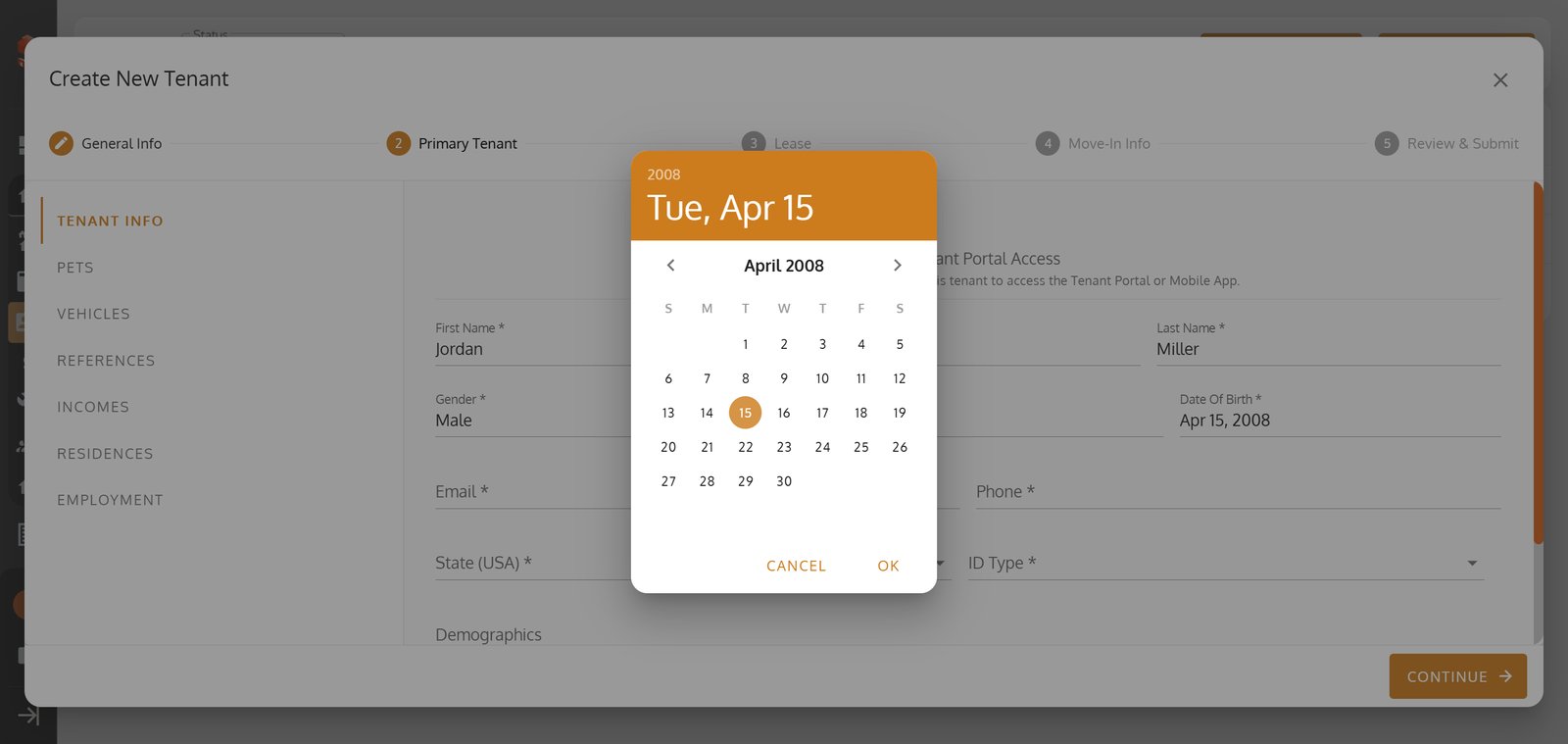
18.
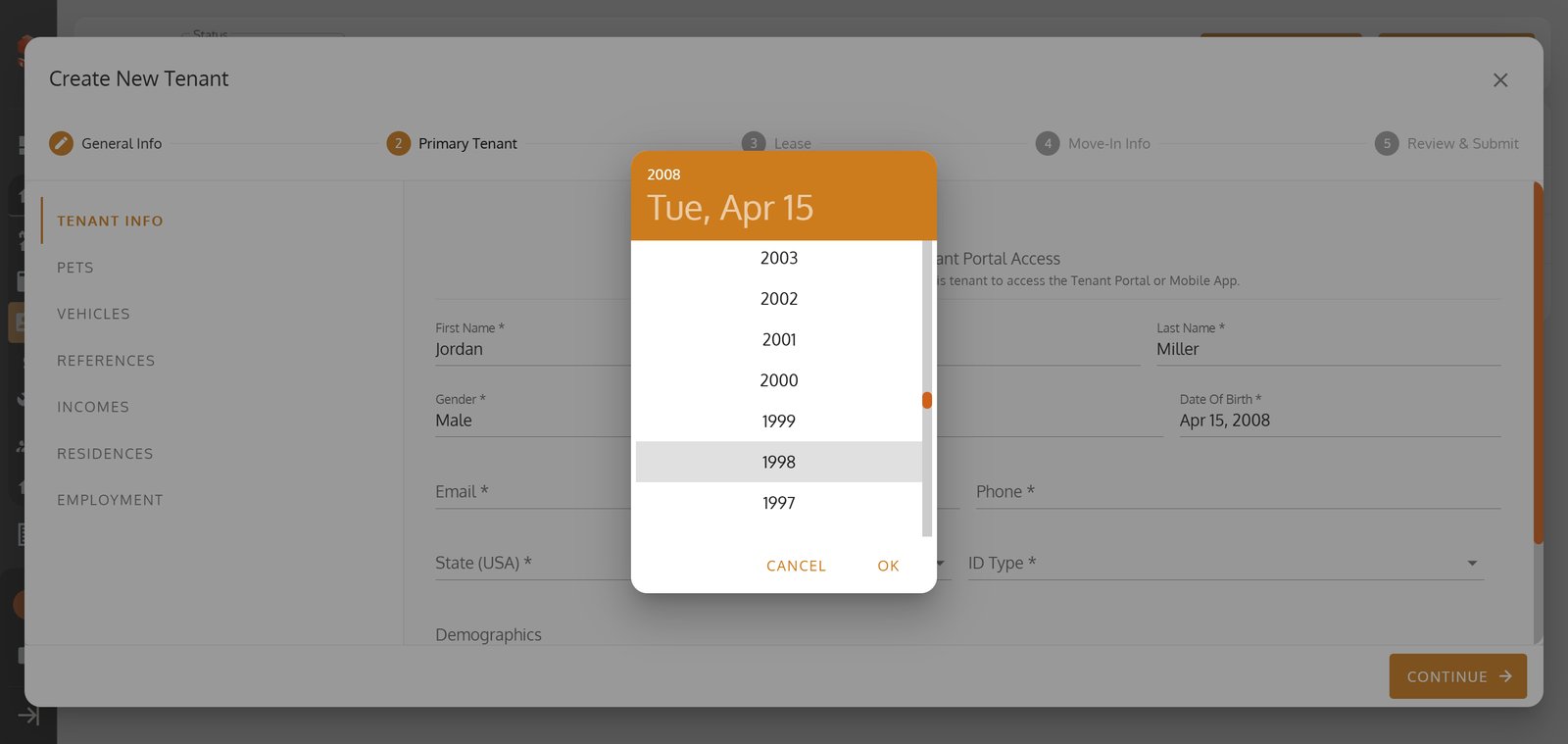
19.
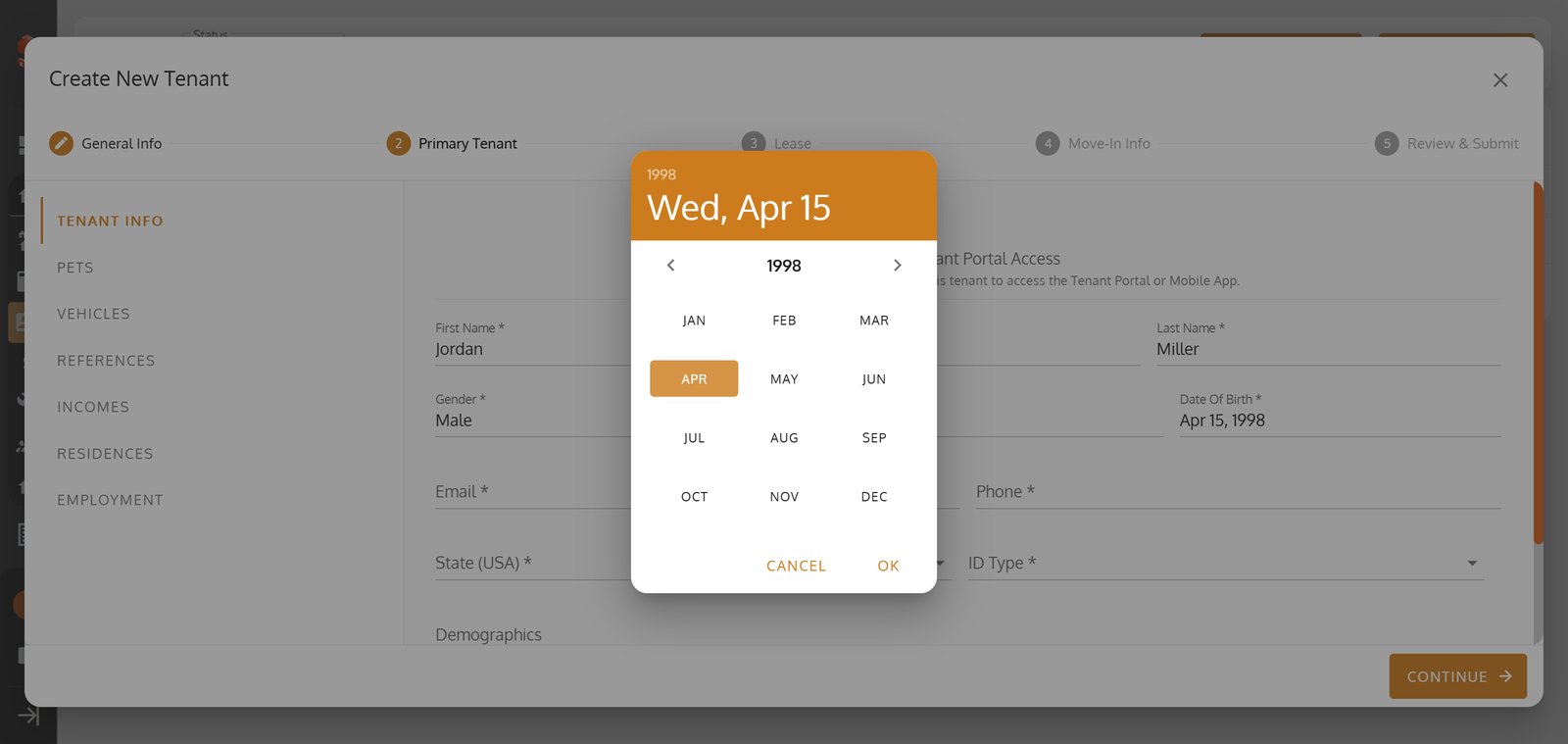
20.
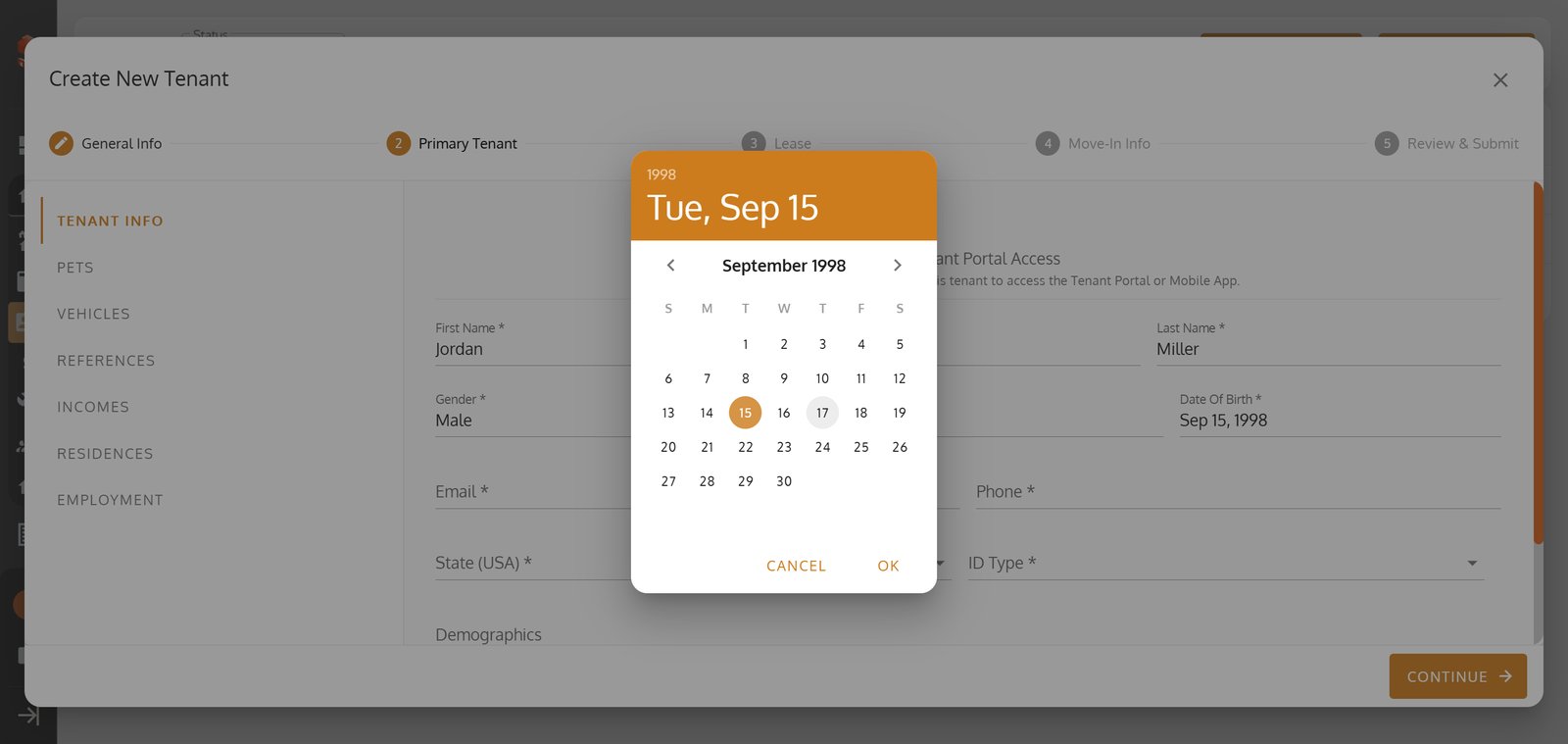
21.
22.
23.
24.
25.
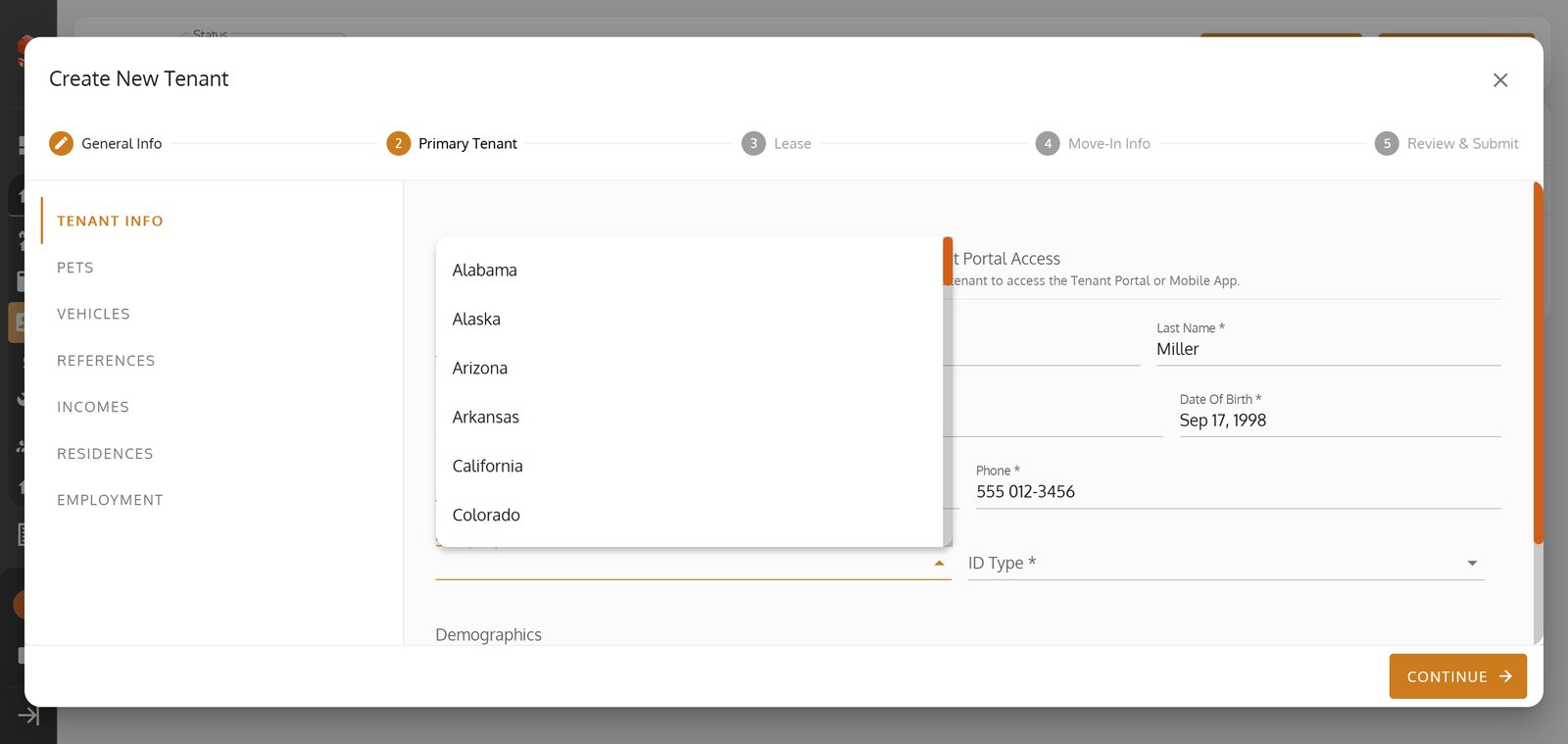
26.
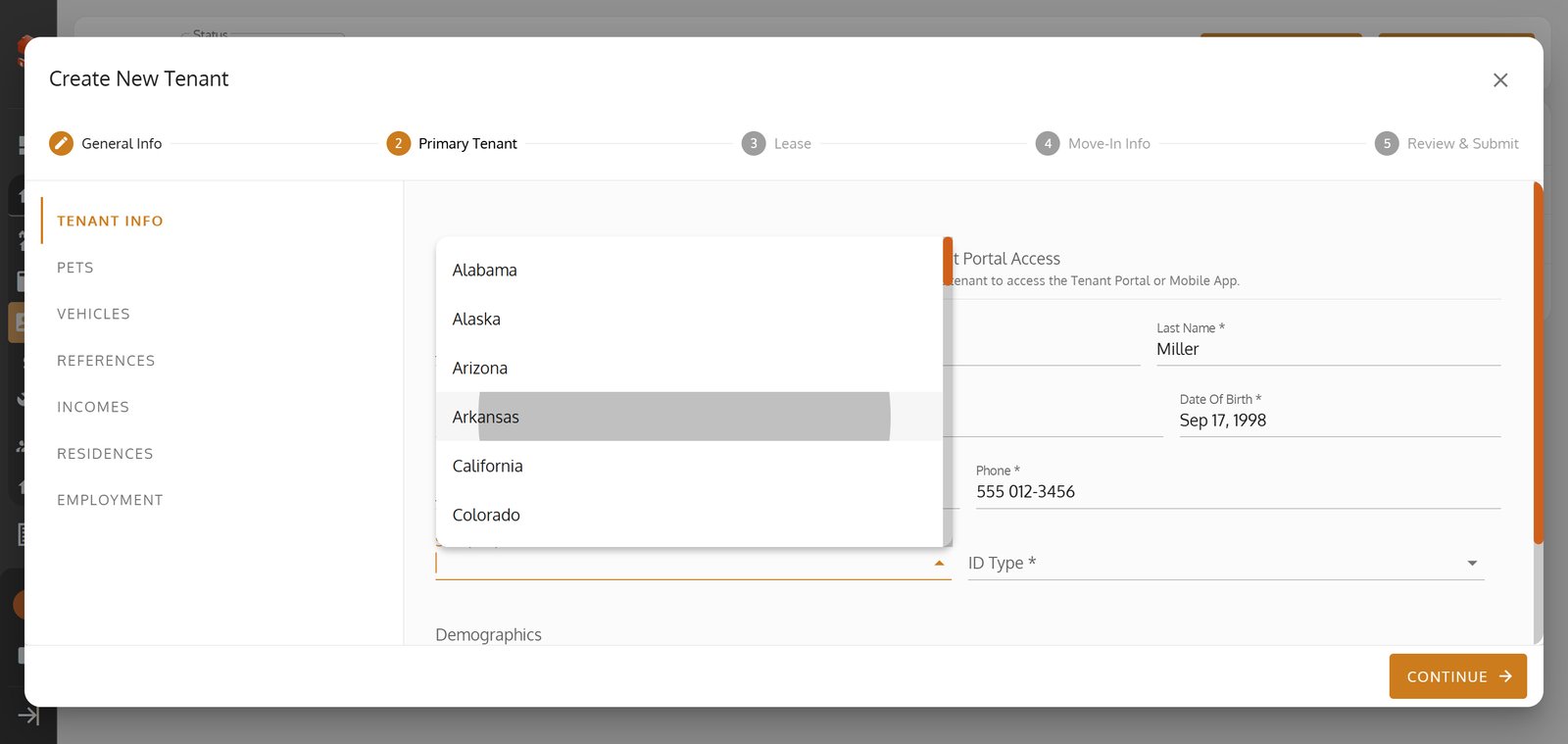
27.
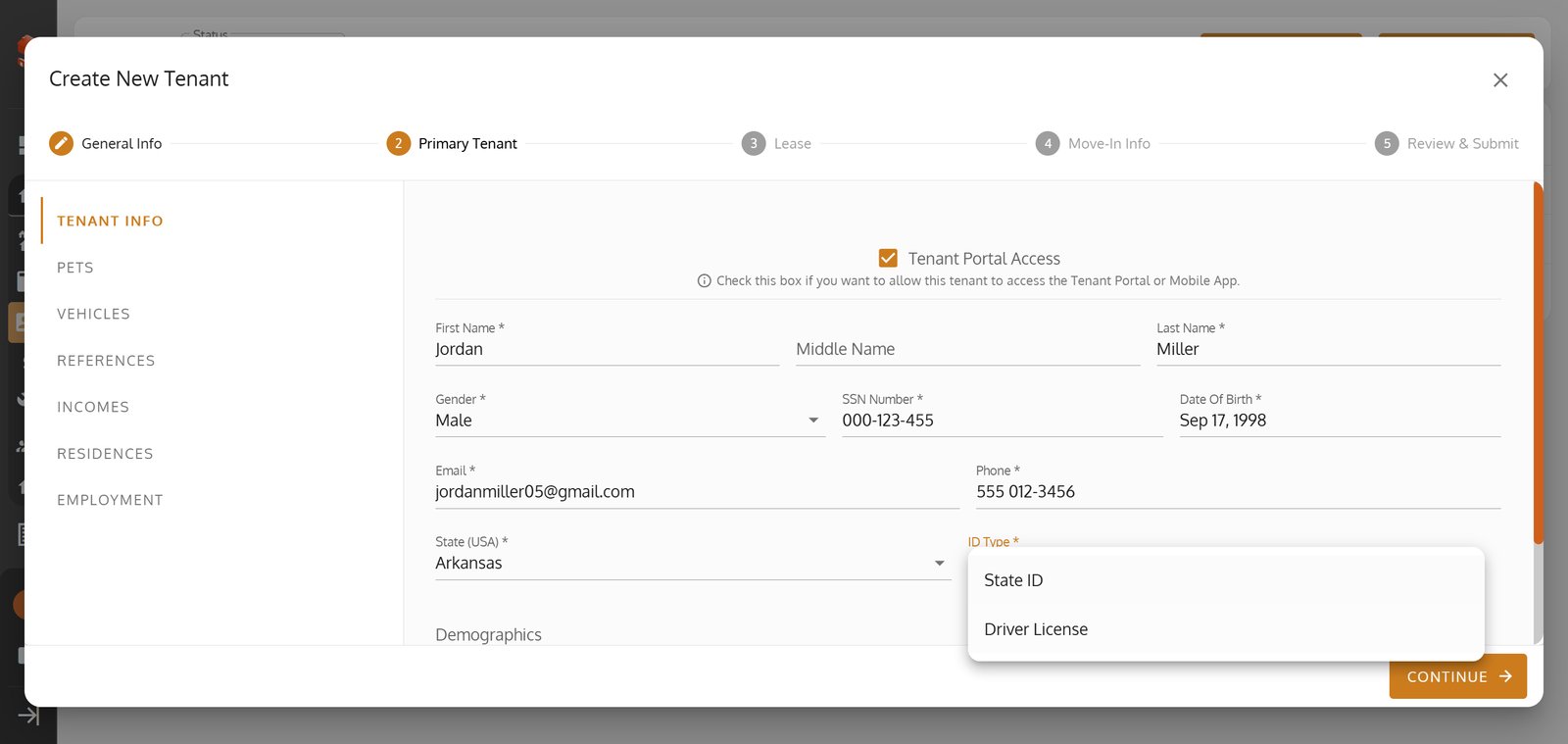
28.
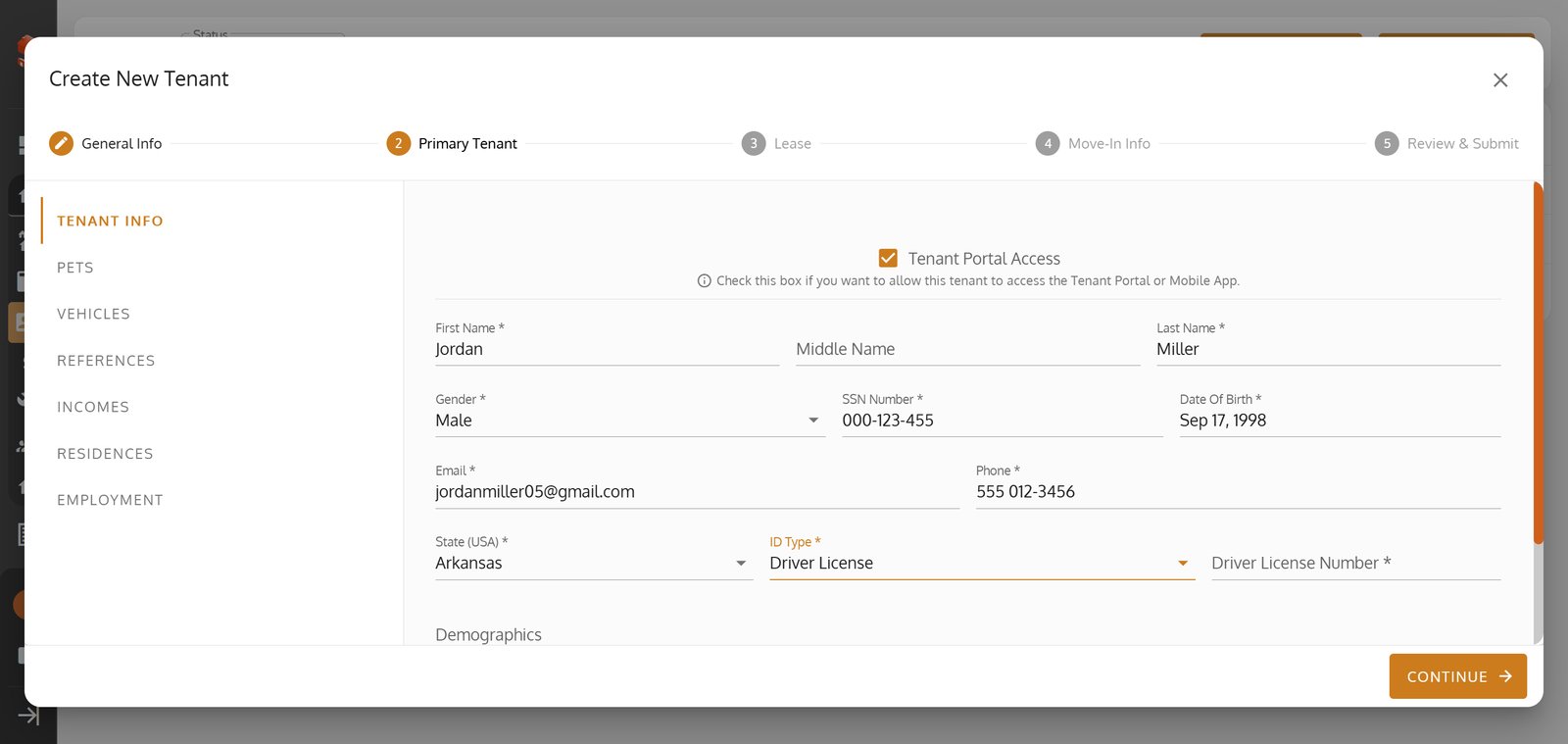
29. Switch to the 'Pets' section to showcase a pet-friendly management experience.

30. Add pet details with a single click to enhance your tenant's profile.

31.
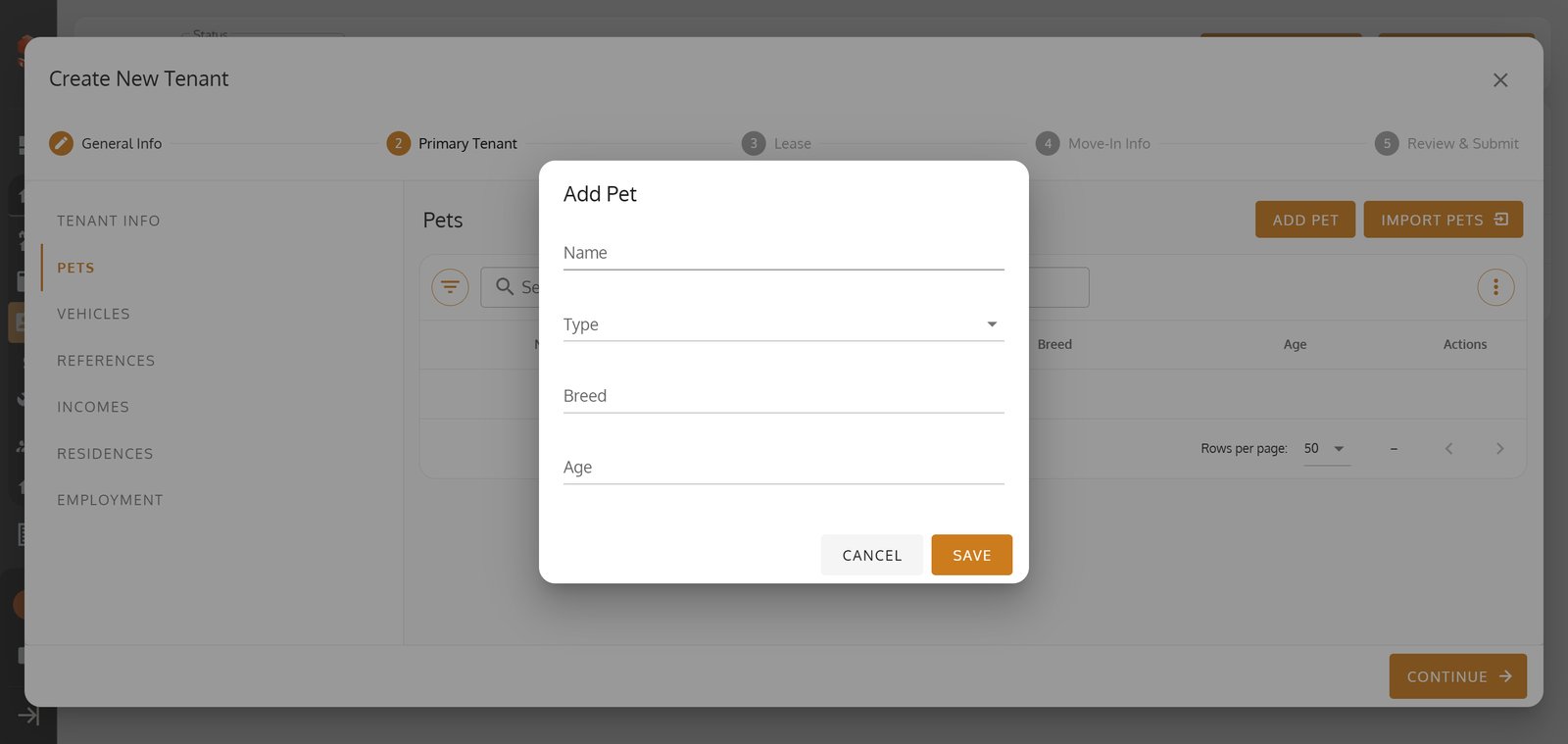
32.
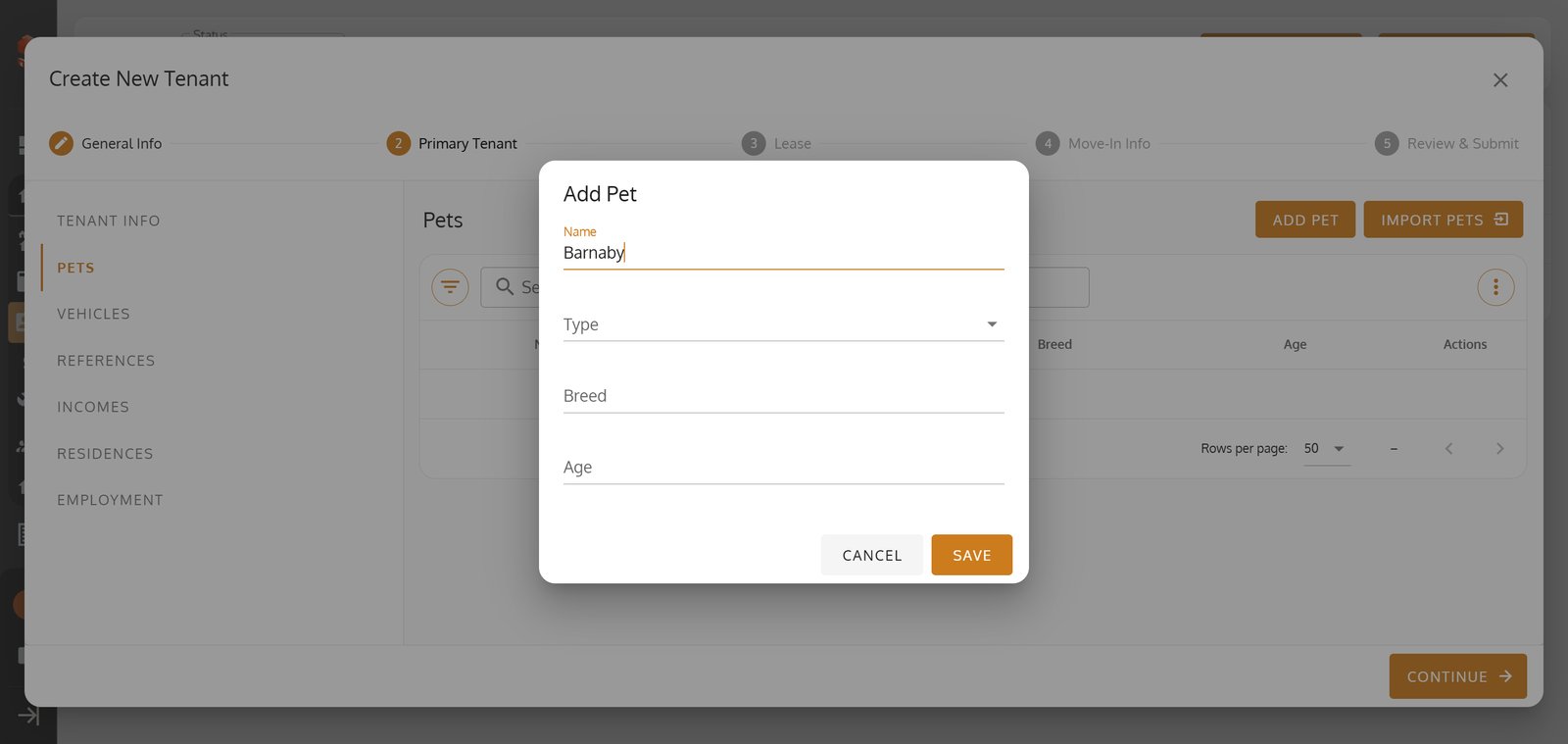
33.
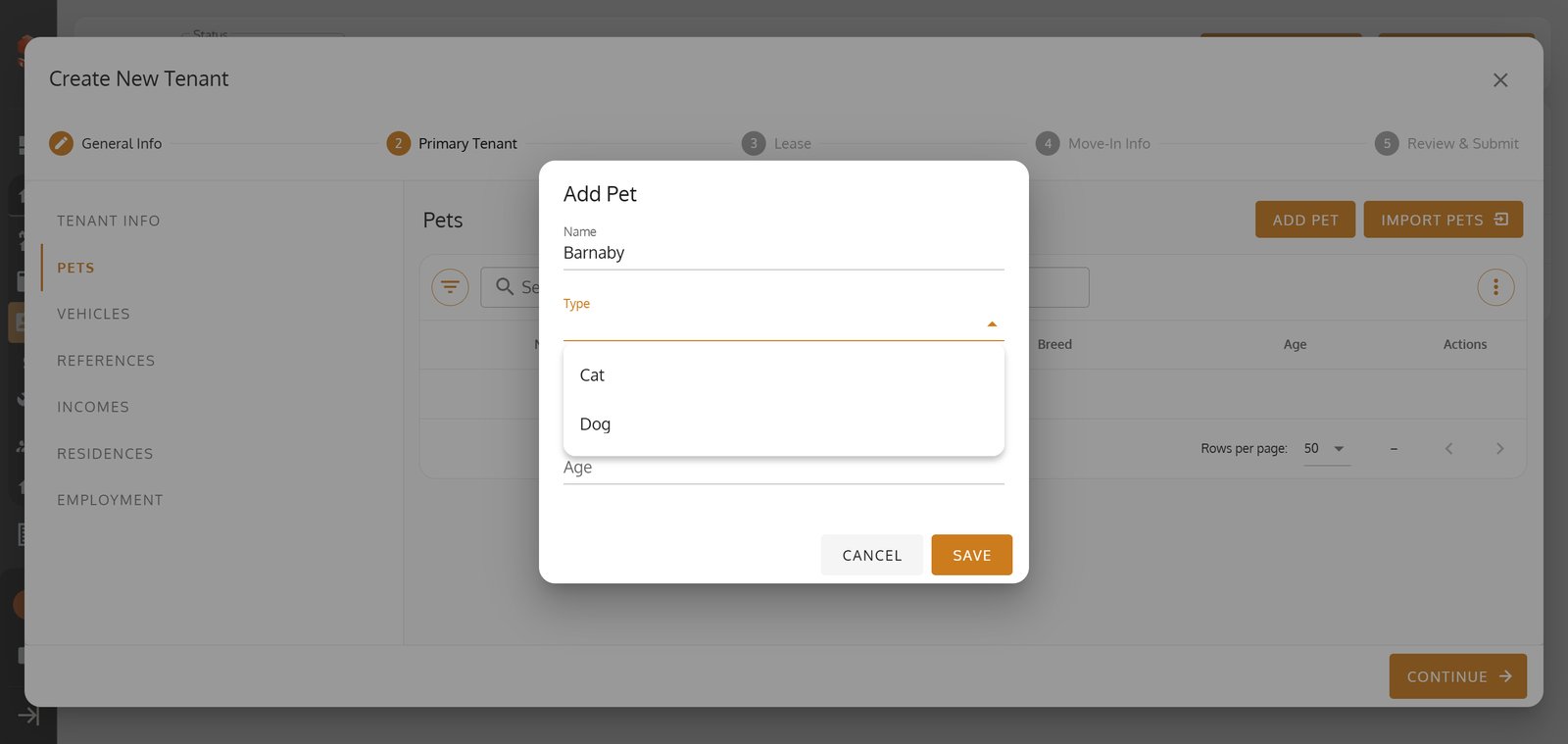
34.
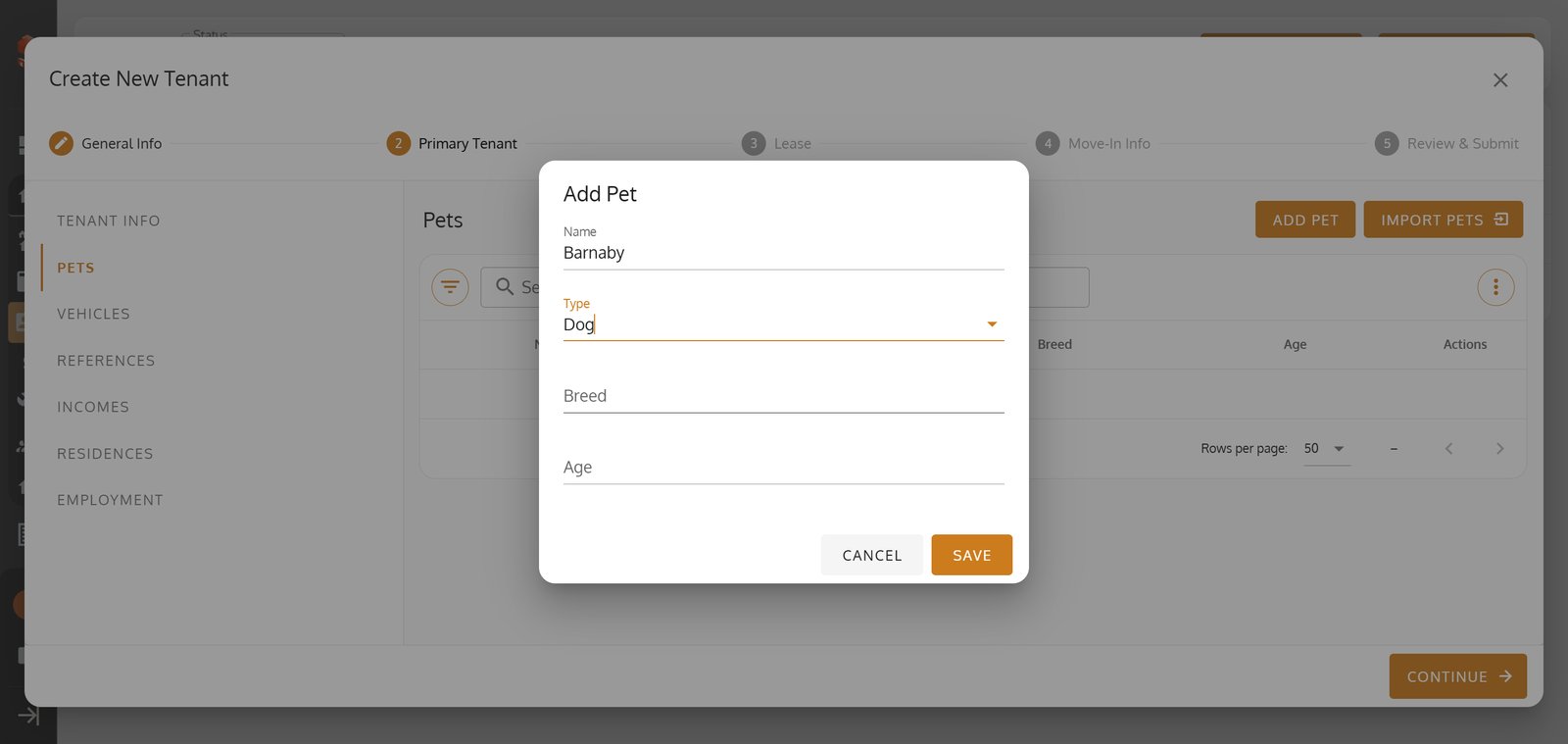
35.
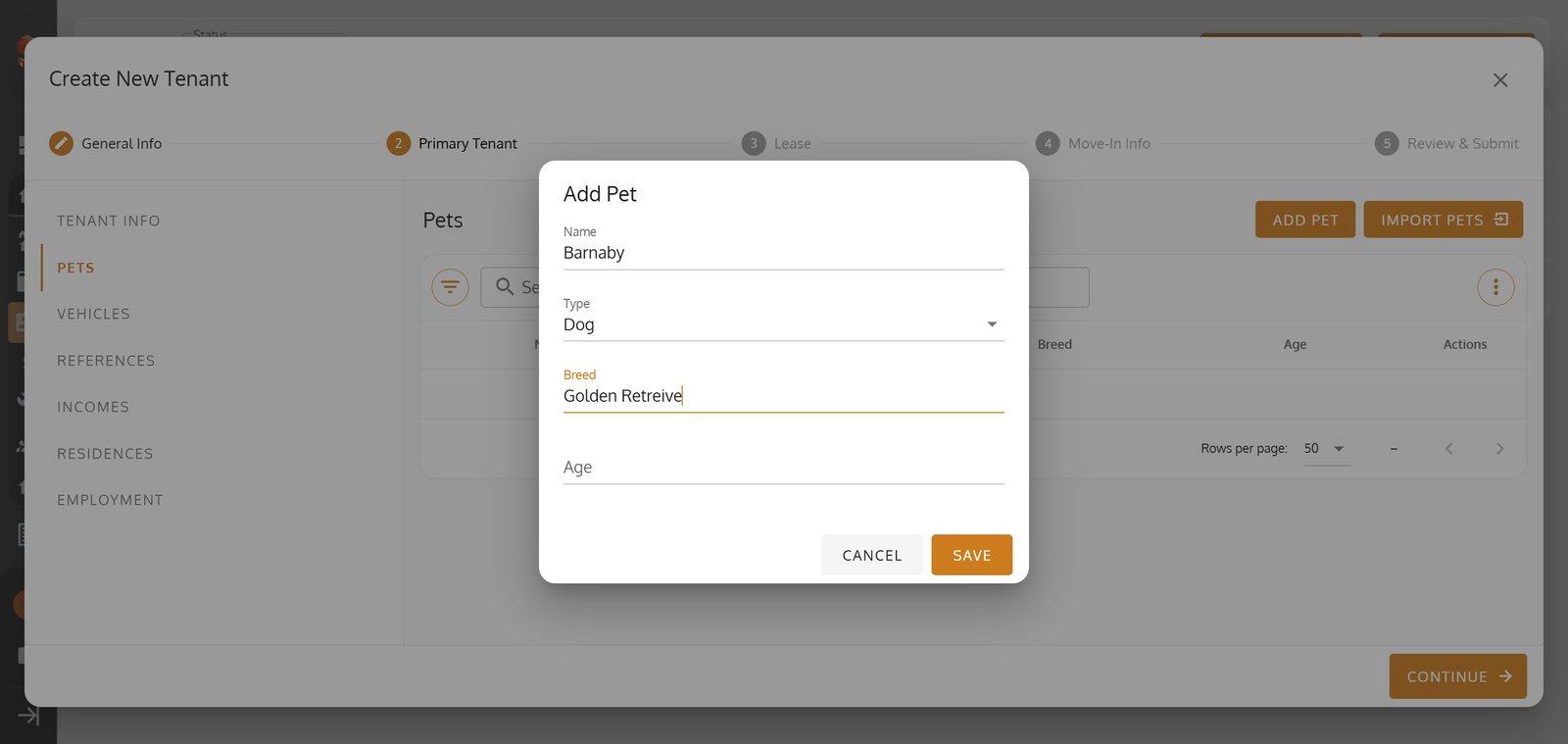
36. Click 'Save' to quickly store your pet's details in the tenant profile.

37. Visit the 'Vehicles' tab to include all relevant vehicle information for your tenant.

38. Add a vehicle to your tenant's record to keep parking and access details organized.

39. Input the vehicle's name or identifier for easy tracking.

40.
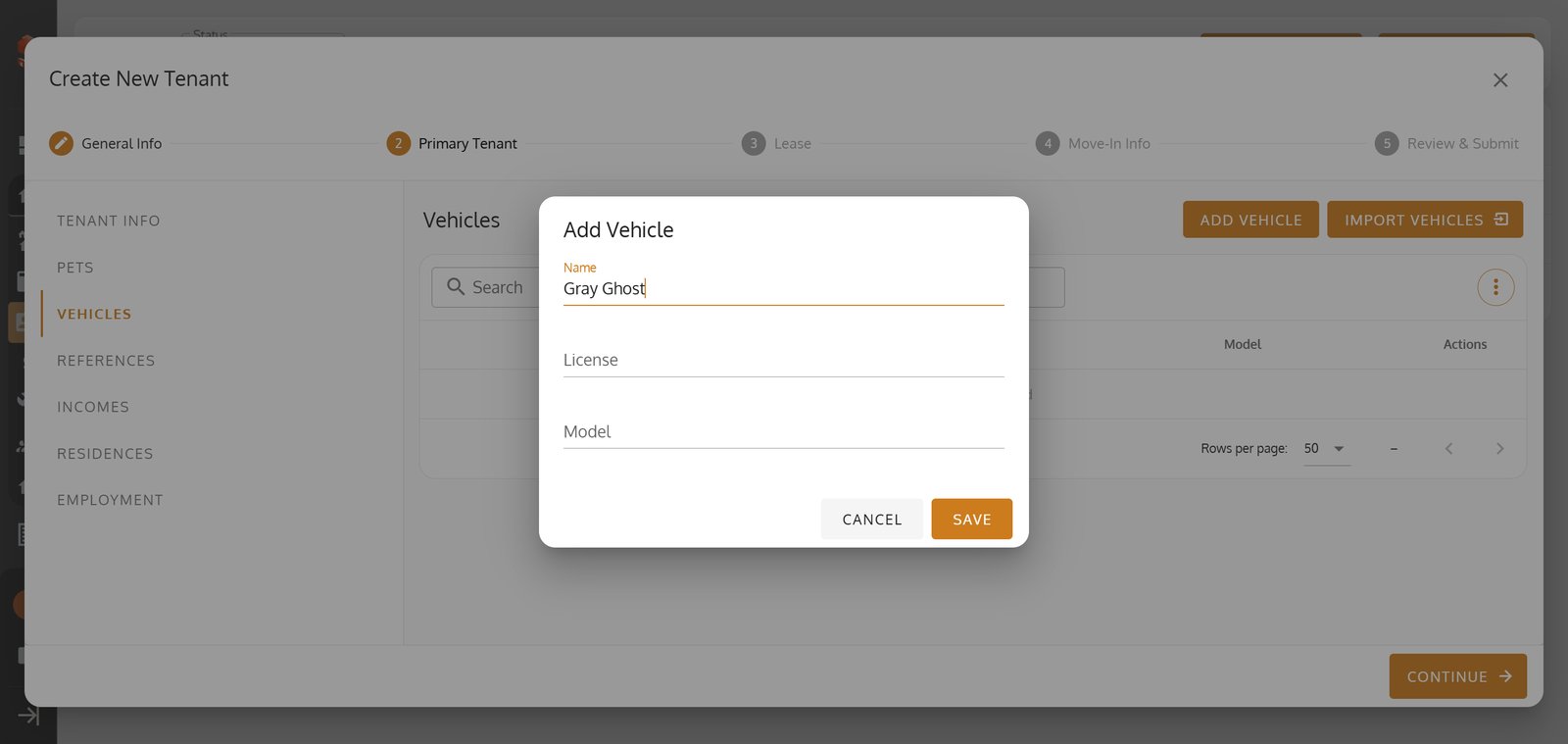
41.
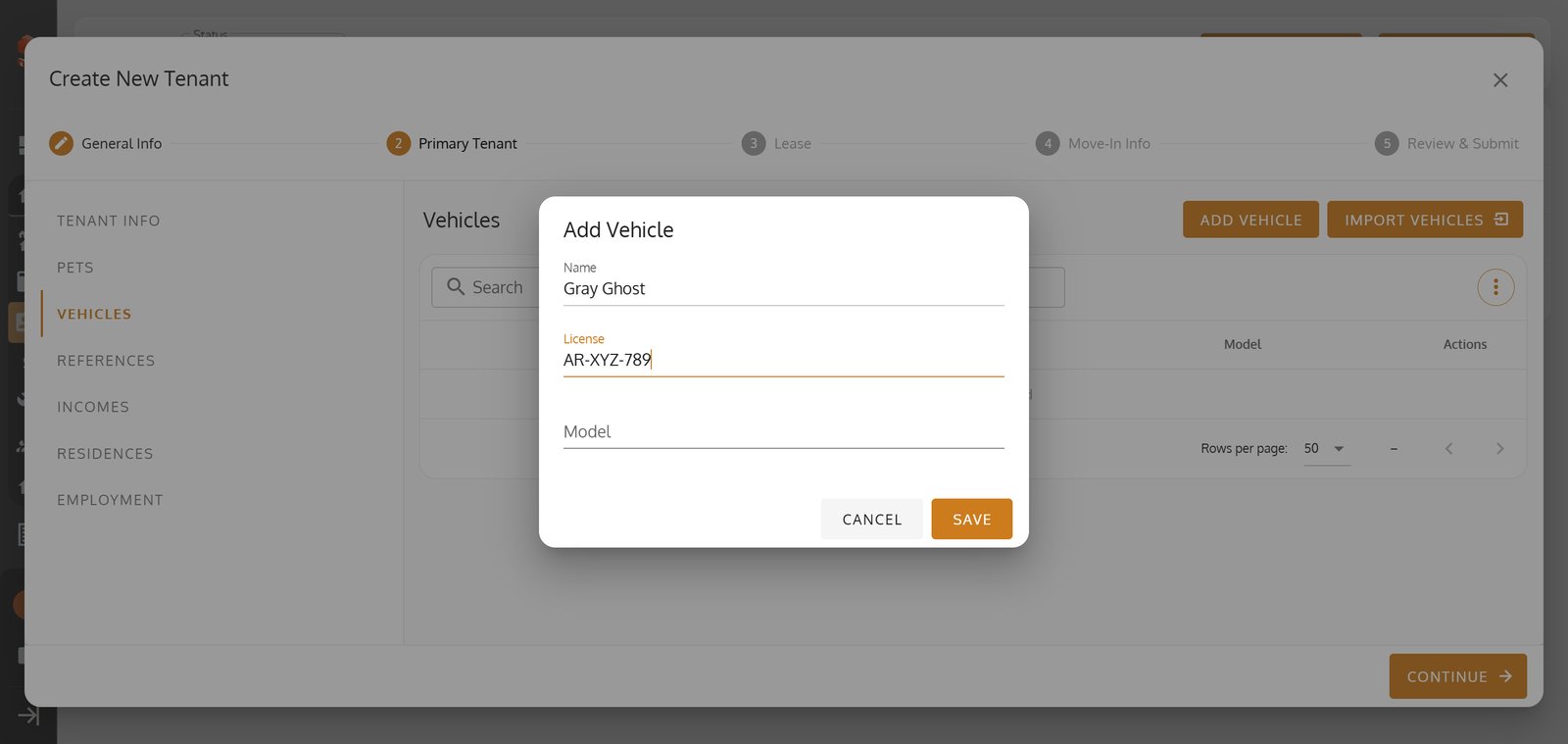
42. Save vehicle info so your tenant's transportation is always up-to-date.

43. Head to 'References' to build trust with documented recommendations and contacts.

44. Add a reference quickly to support your tenant's application.

45.
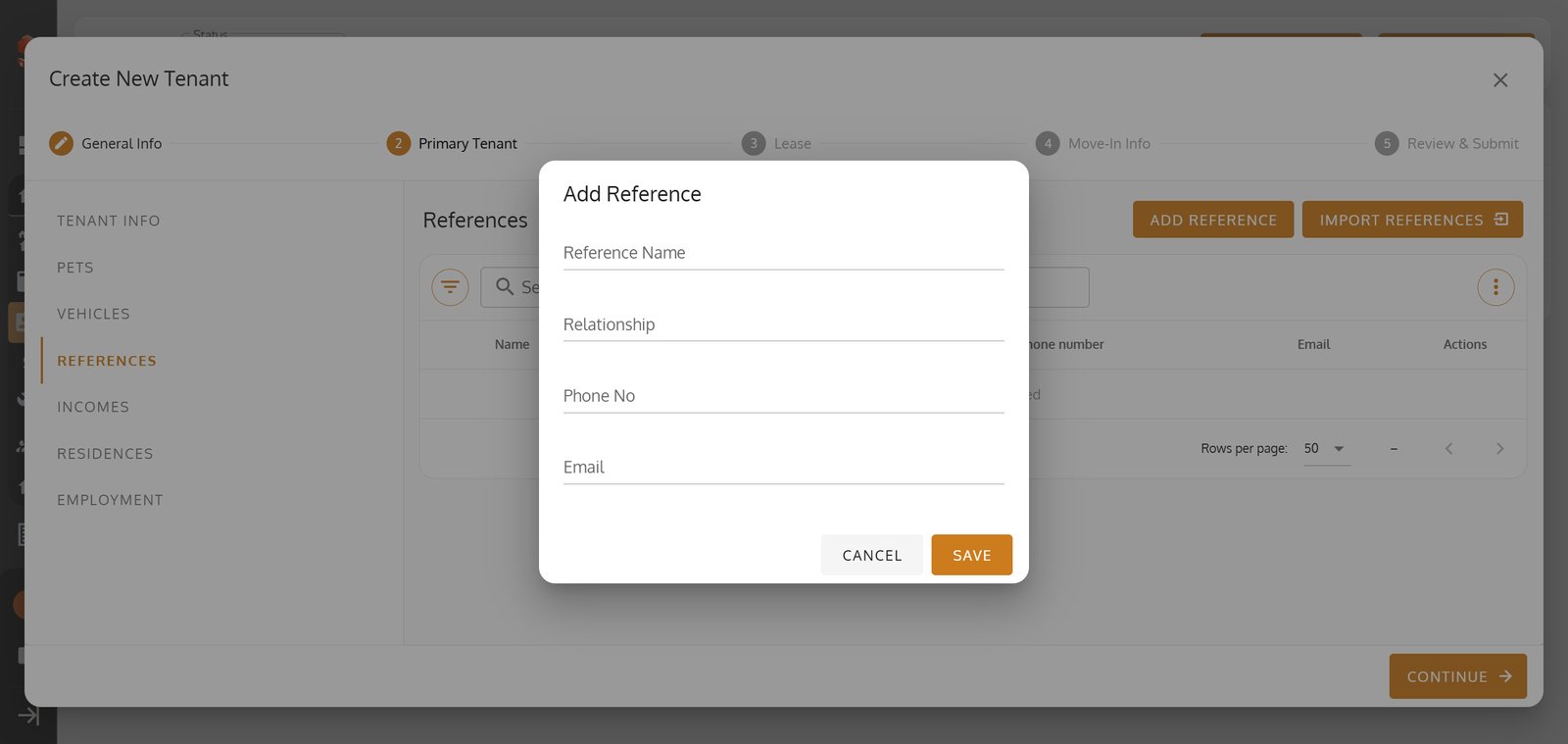
46.
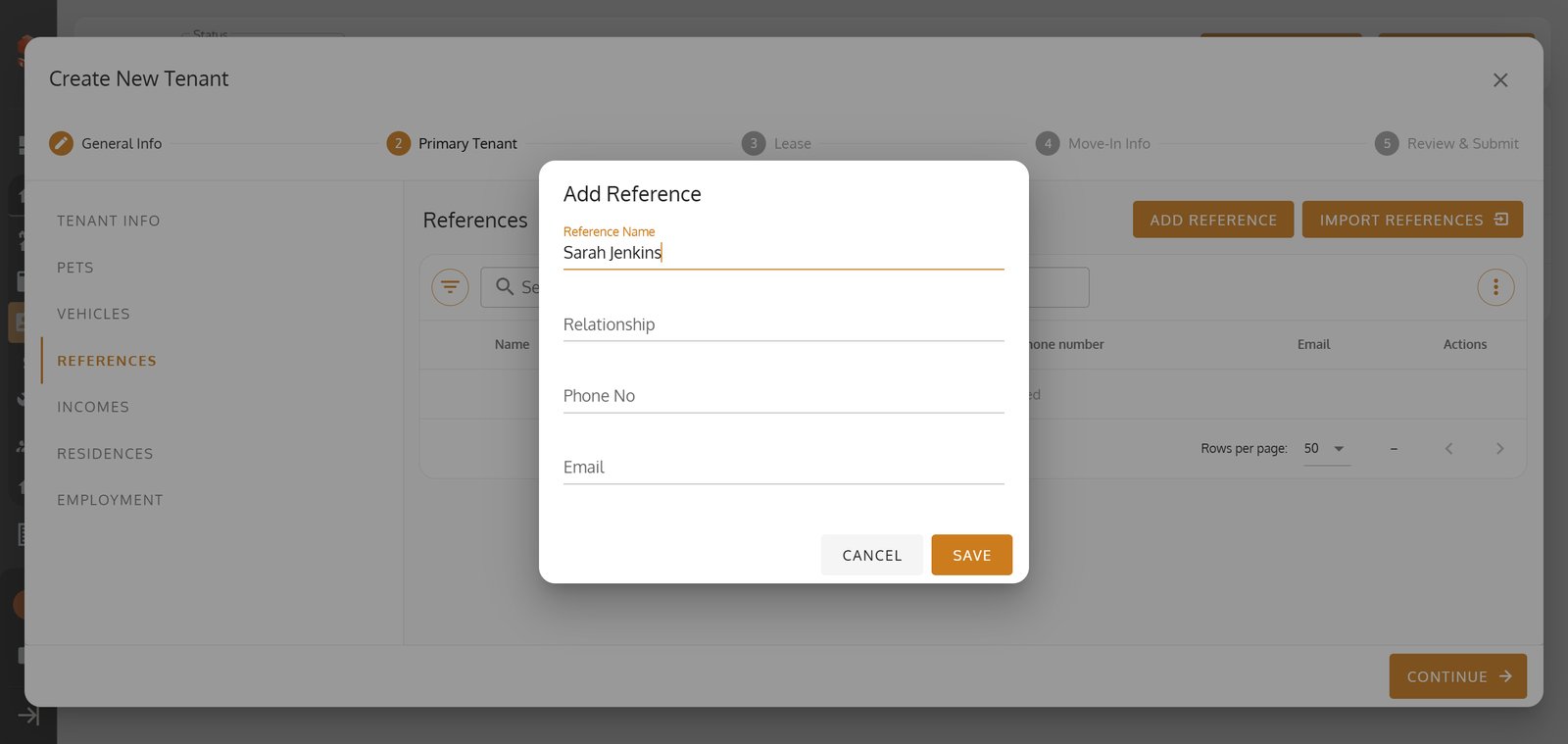
47.
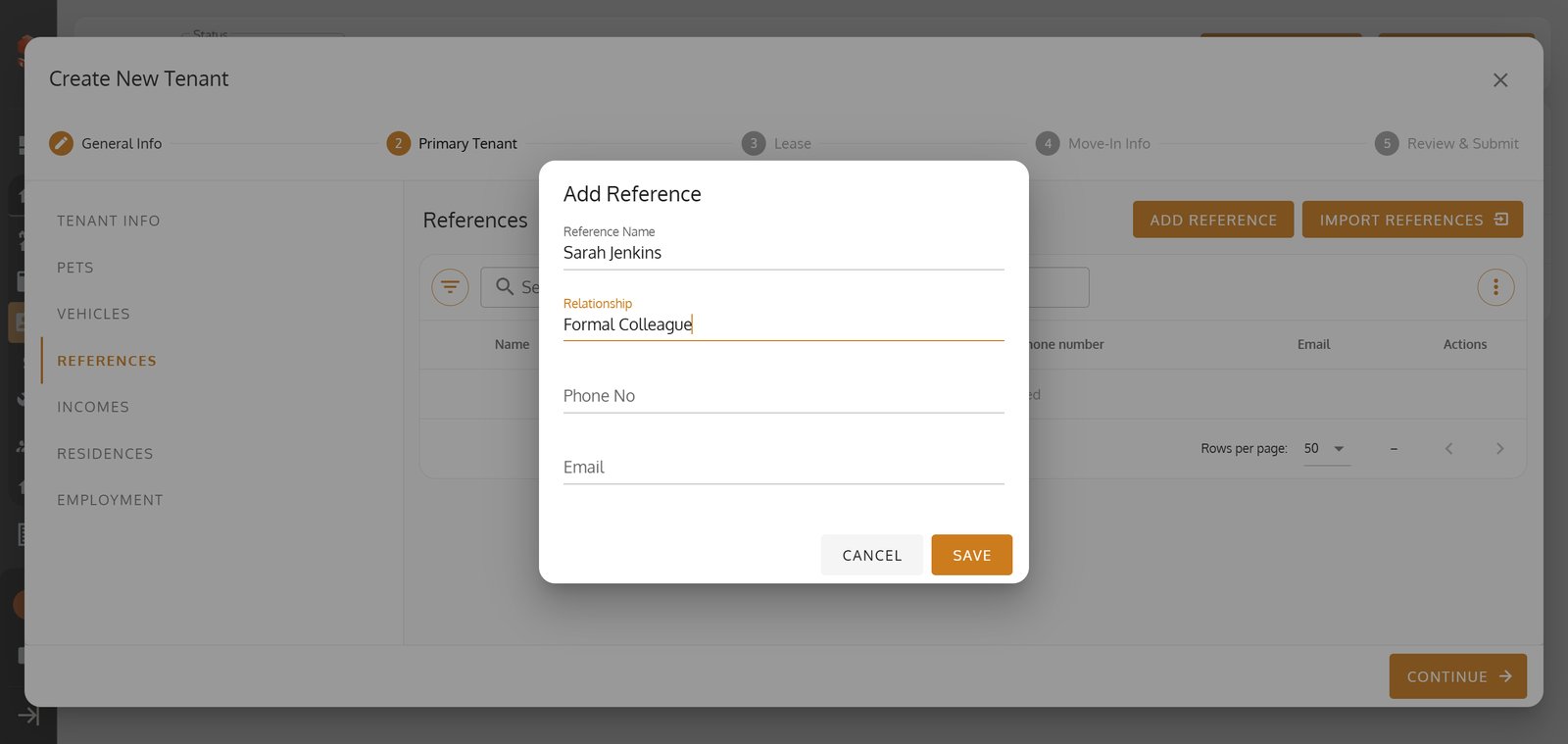
48.
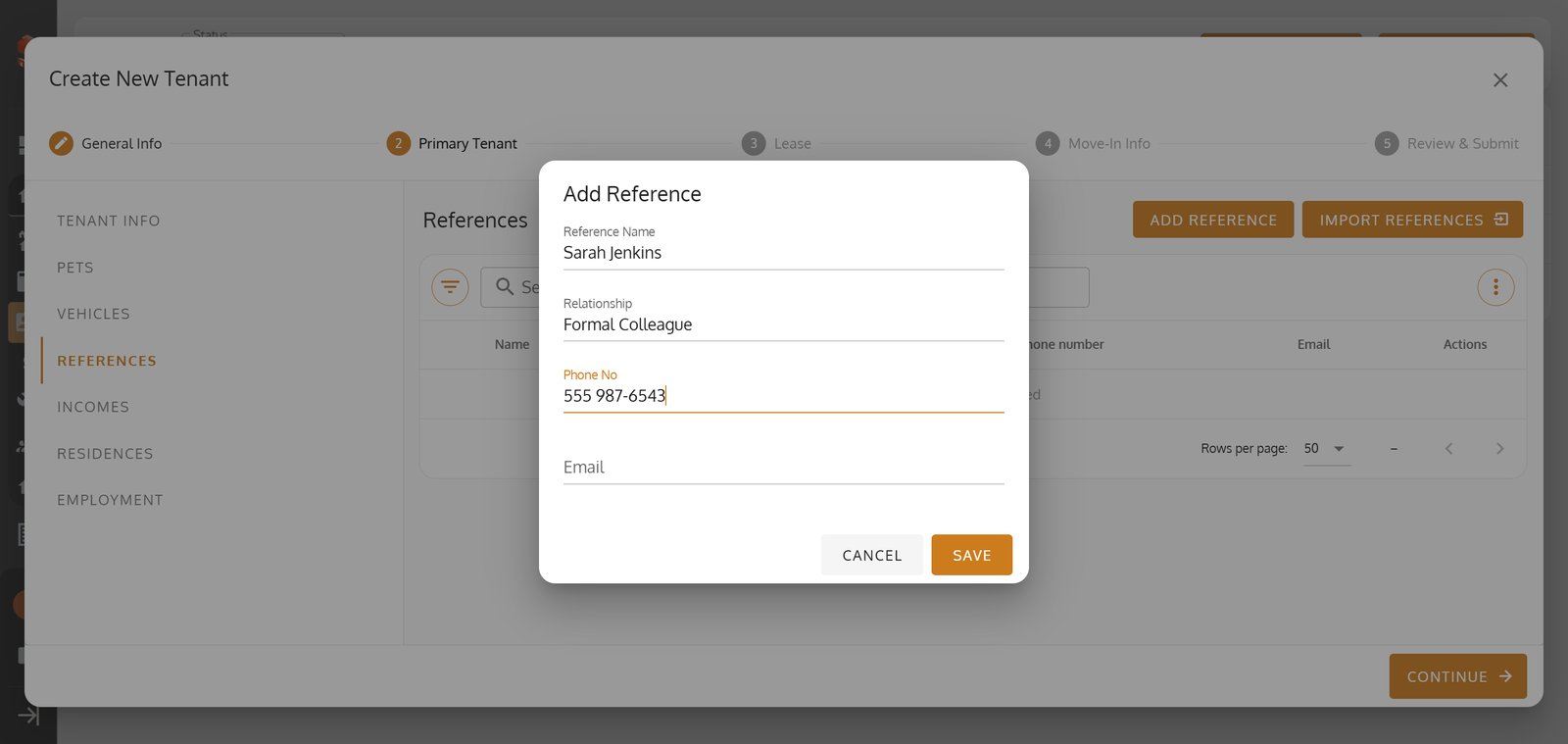
49. Save reference details to secure a well-rounded tenant profile.

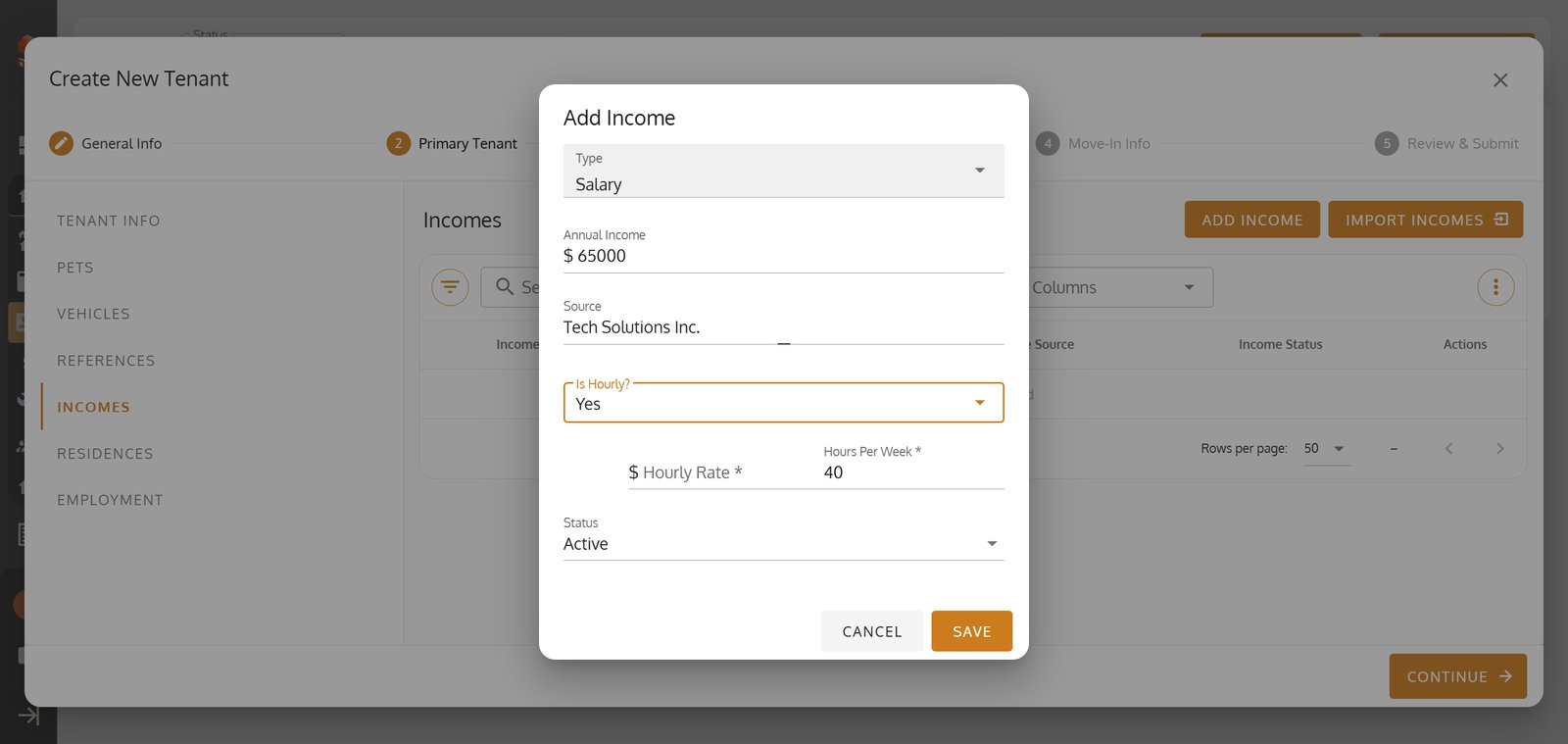
50. Navigate to 'Incomes' to ensure financial eligibility and document tenant stability.

51. Click "Add Income"

52.
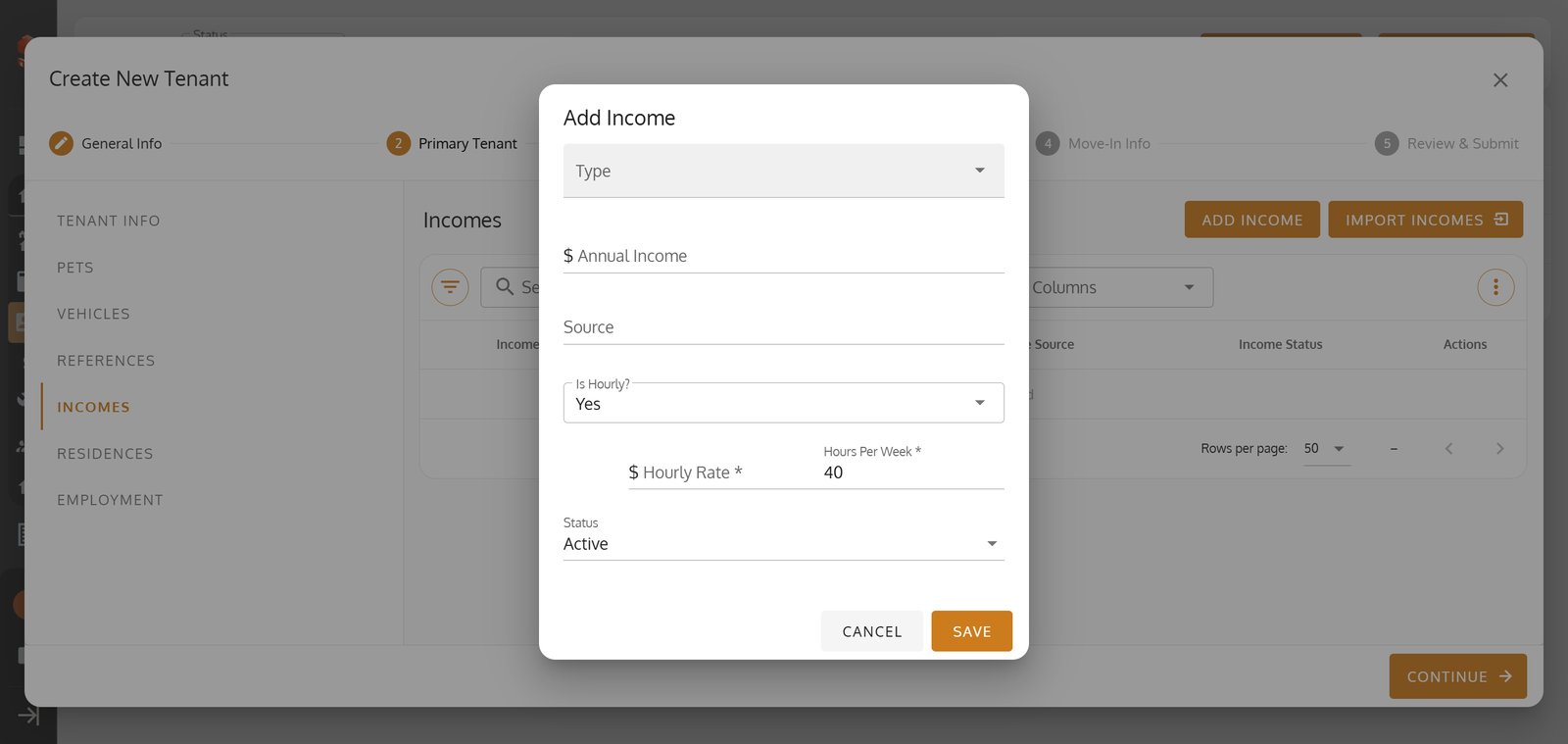
53.
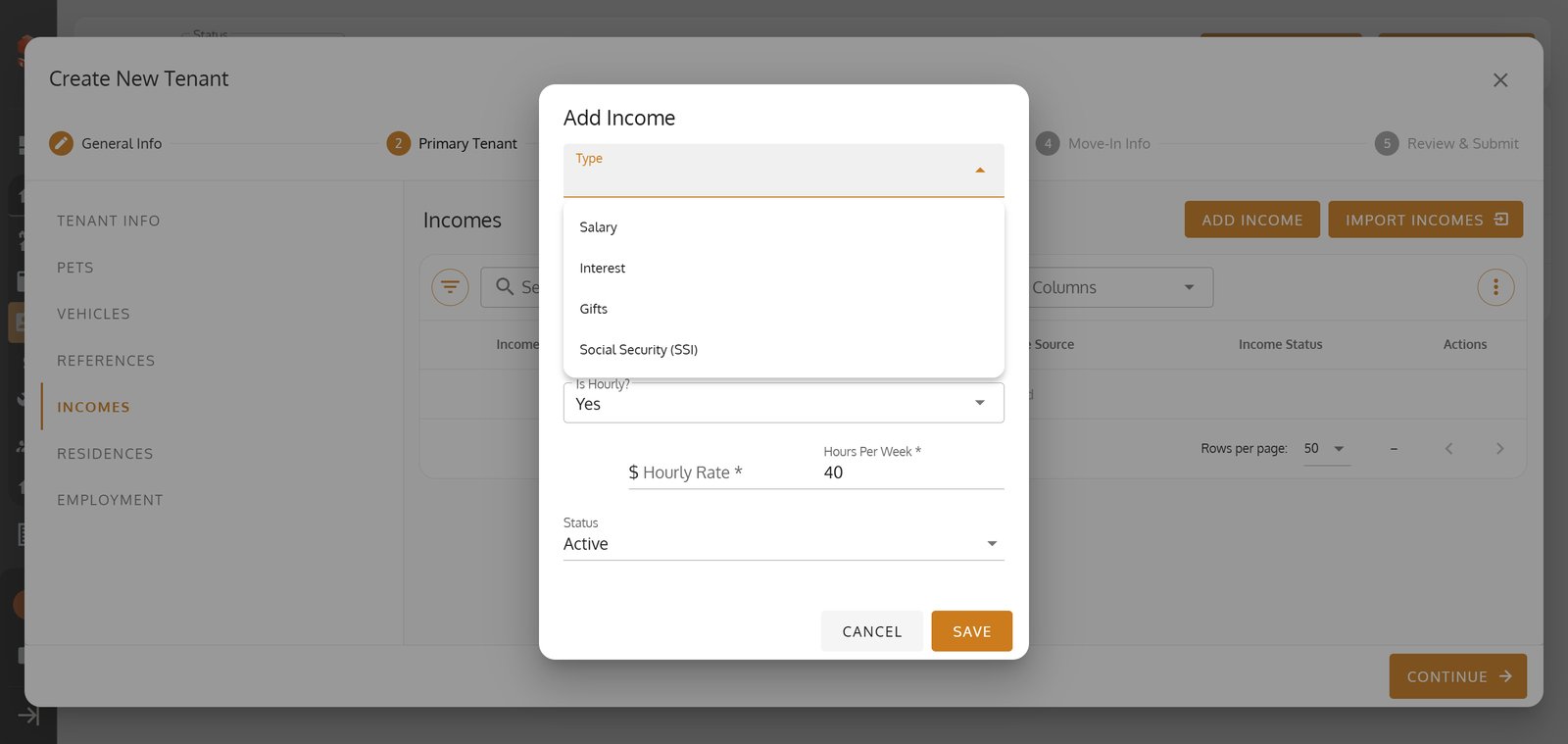
54.
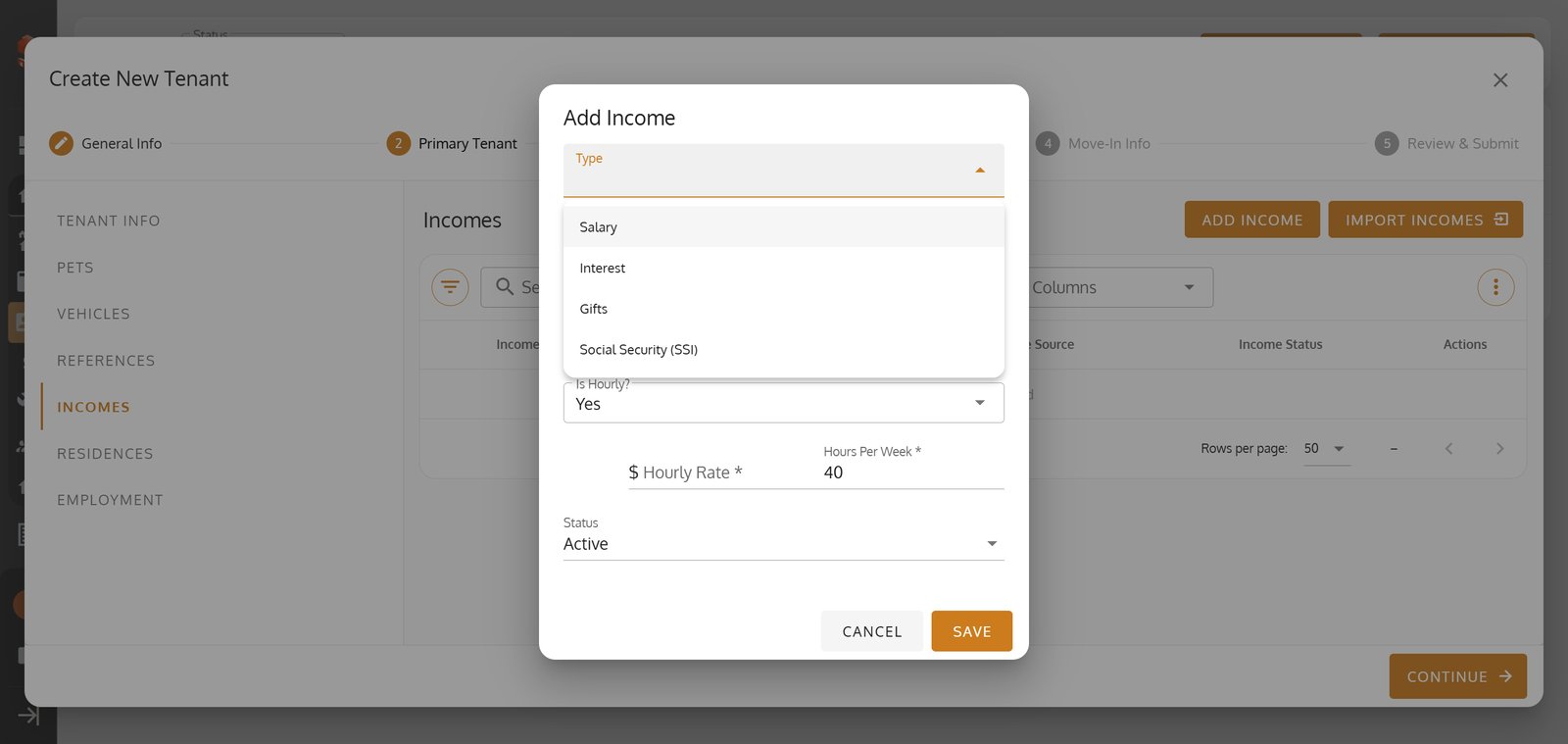
55.
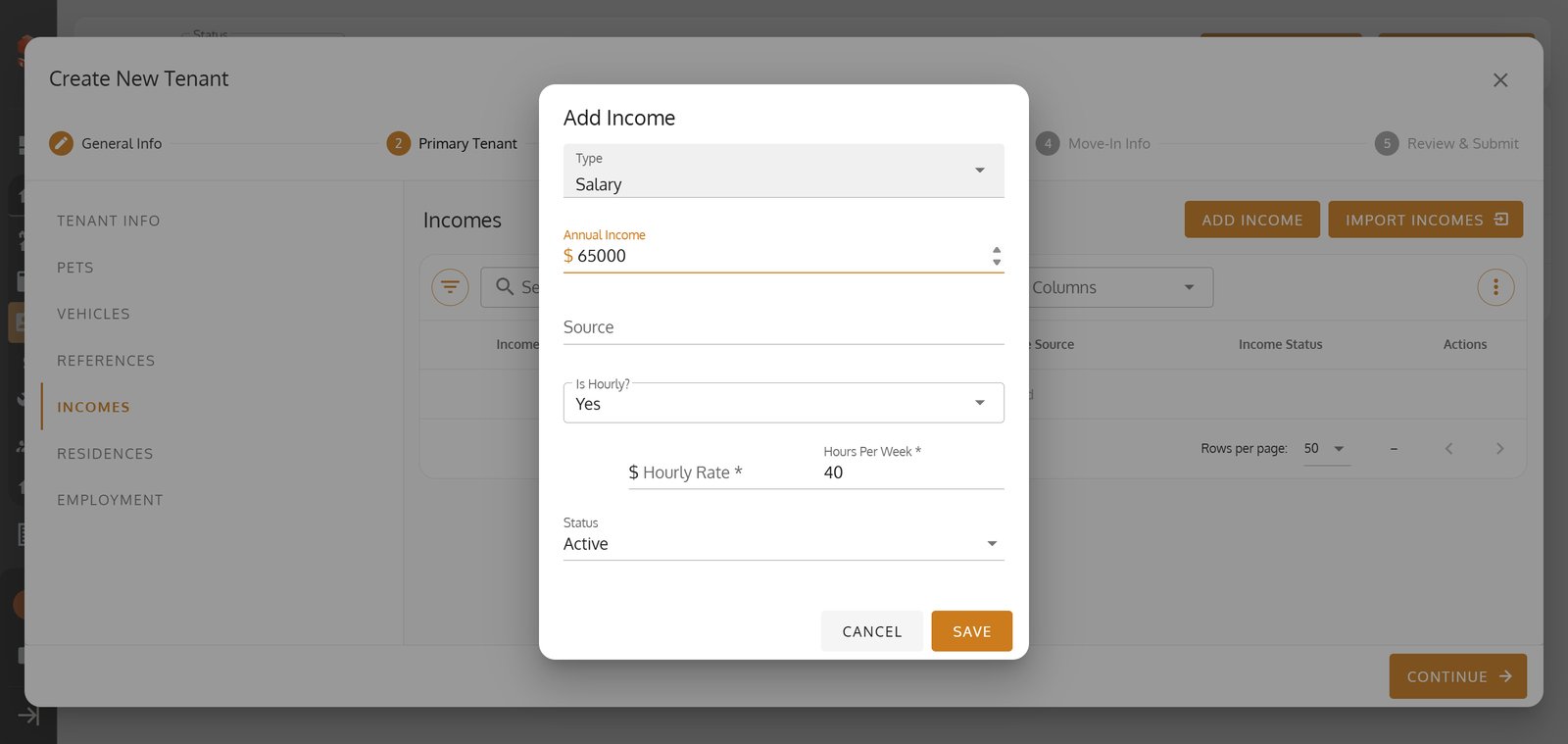
56.
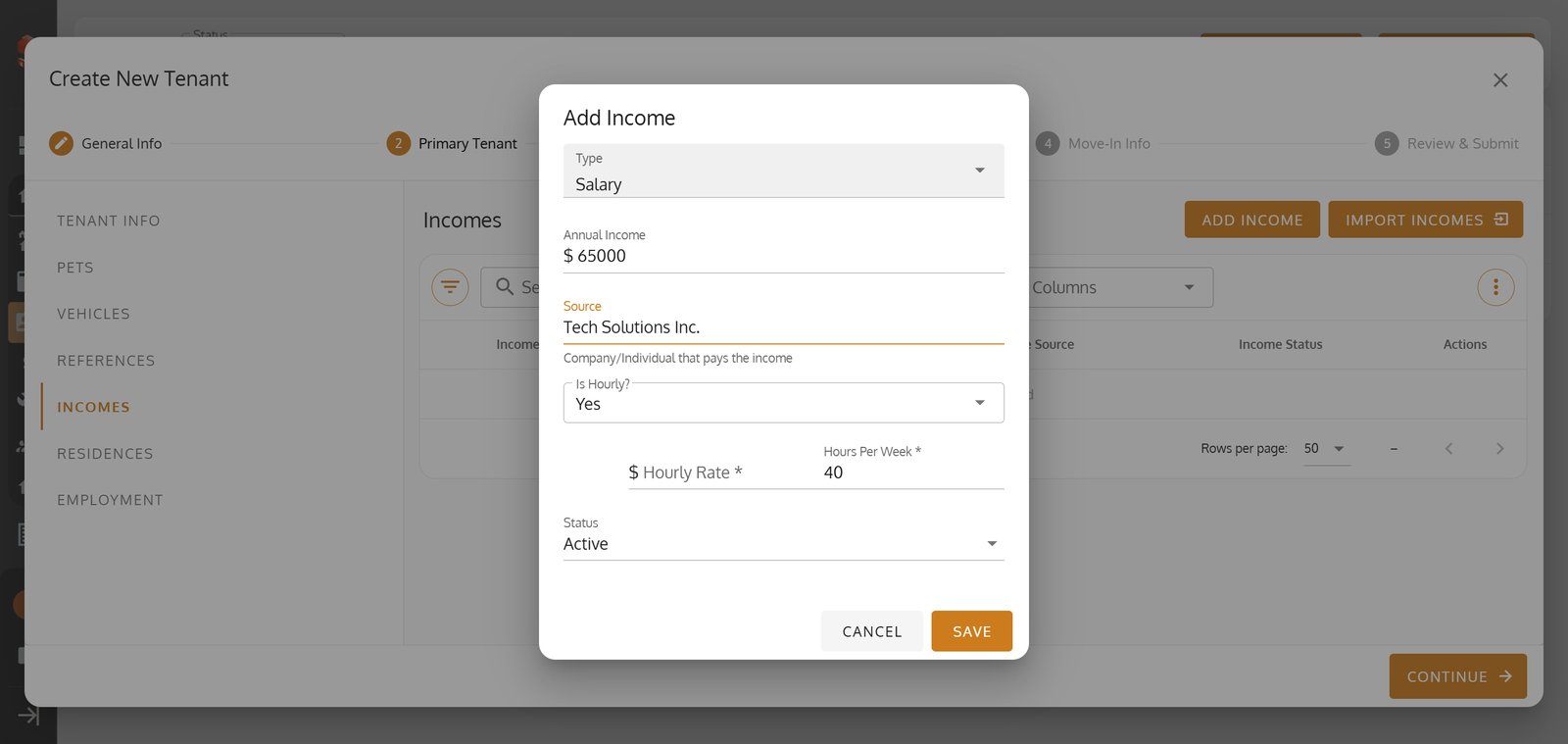
57.
58.
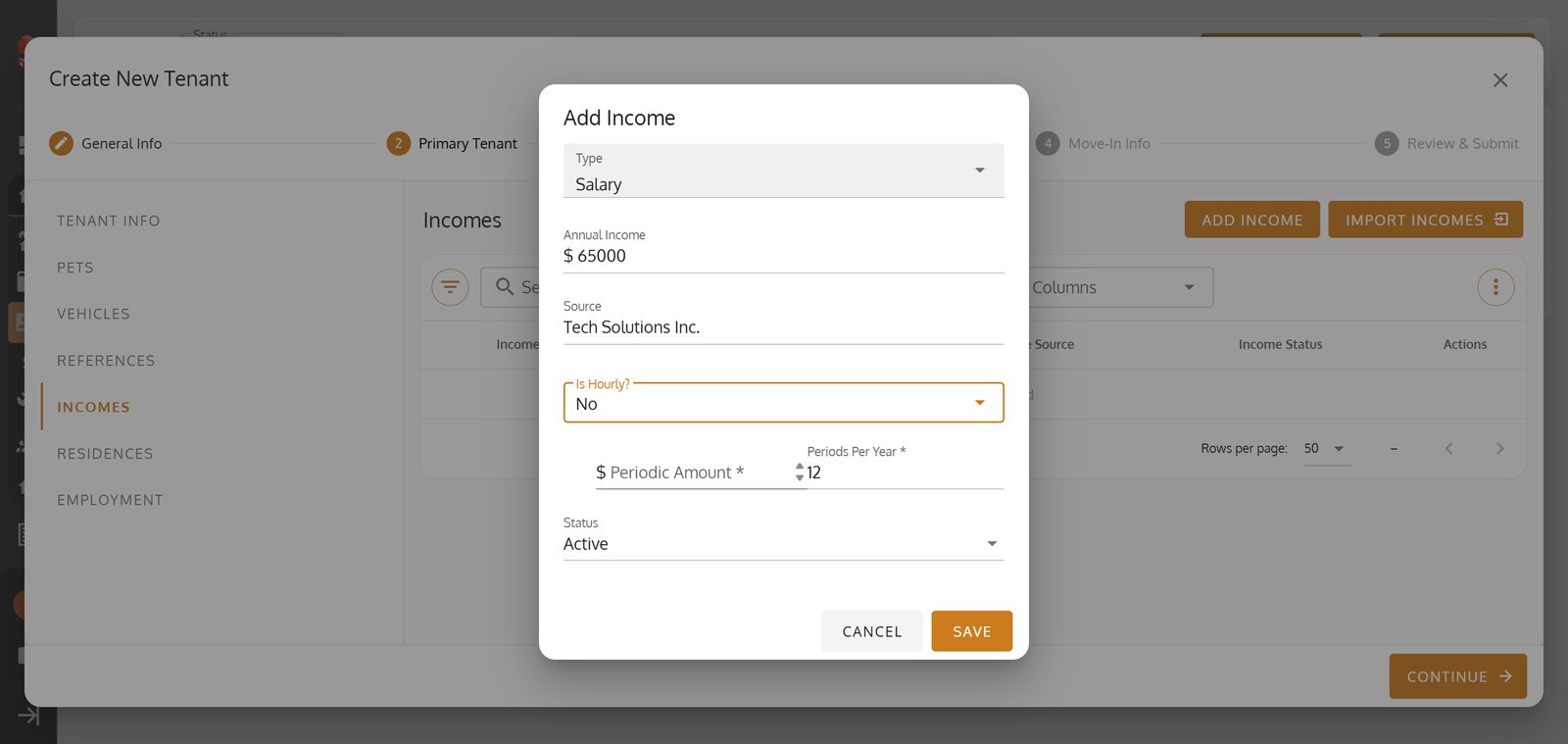
59. Click Save to finalize the new tenant profile.

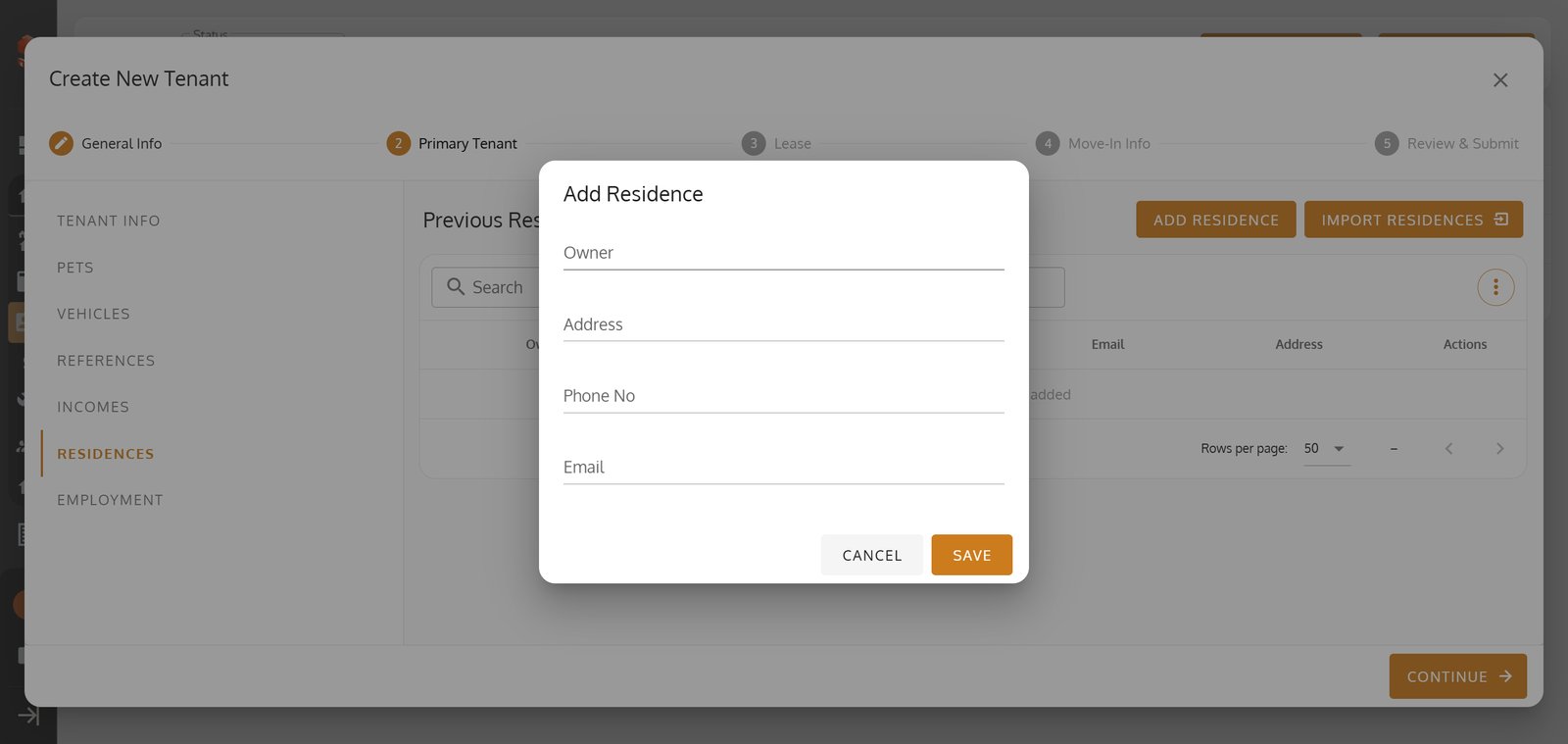
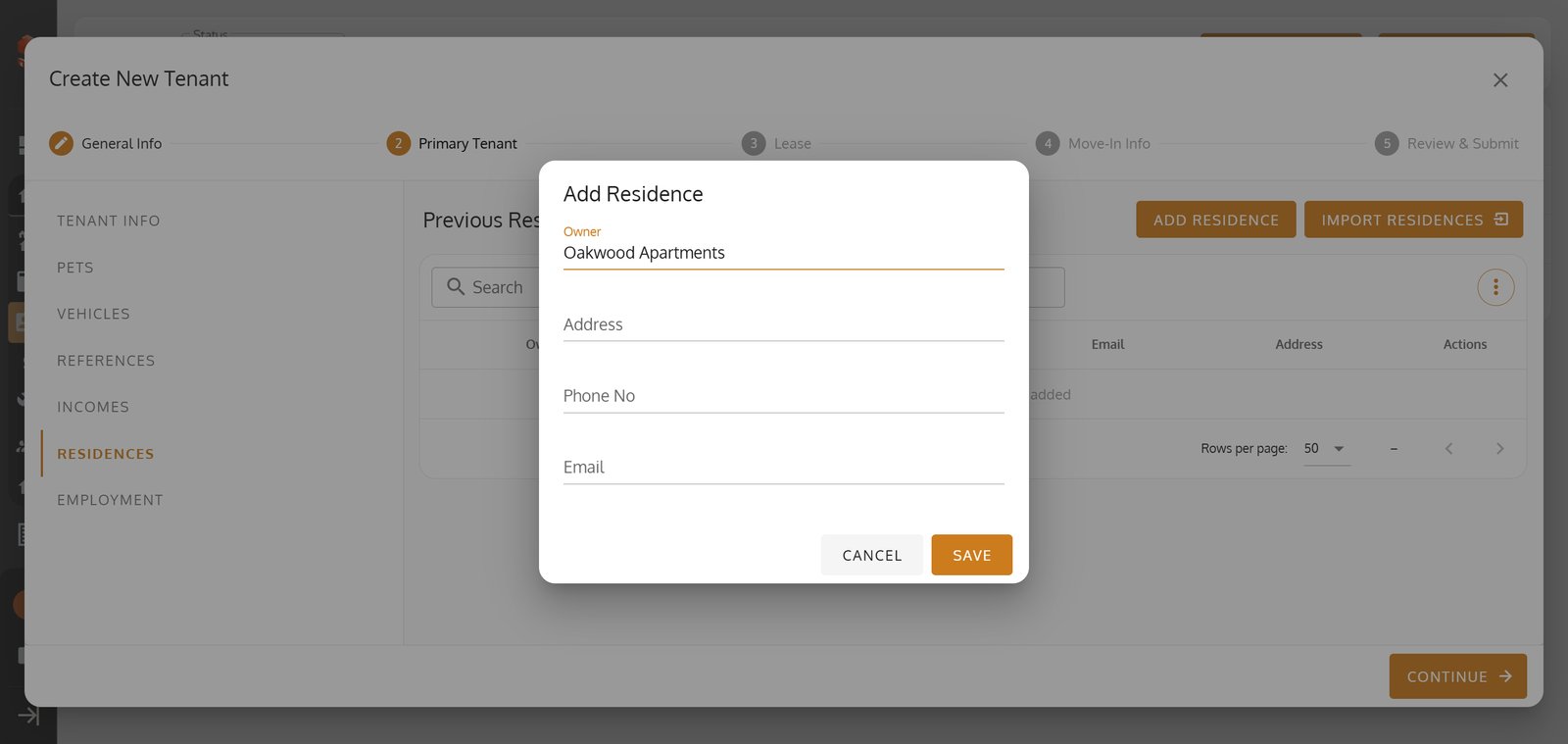
60. Click Residences Tab to open the Residences section.

61. Click ADD RESIDENCE to add a residence.

62.
63.
64.
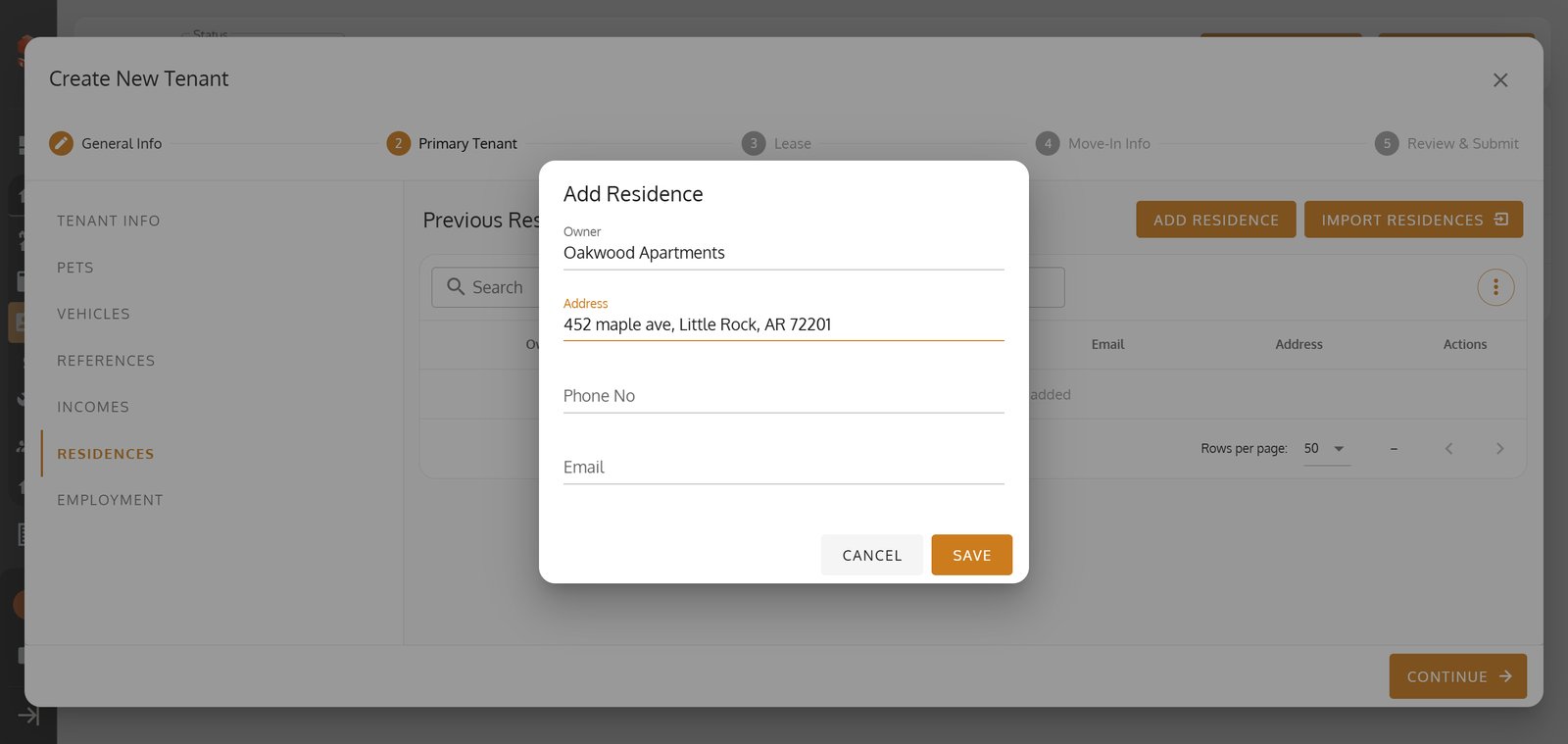
65.
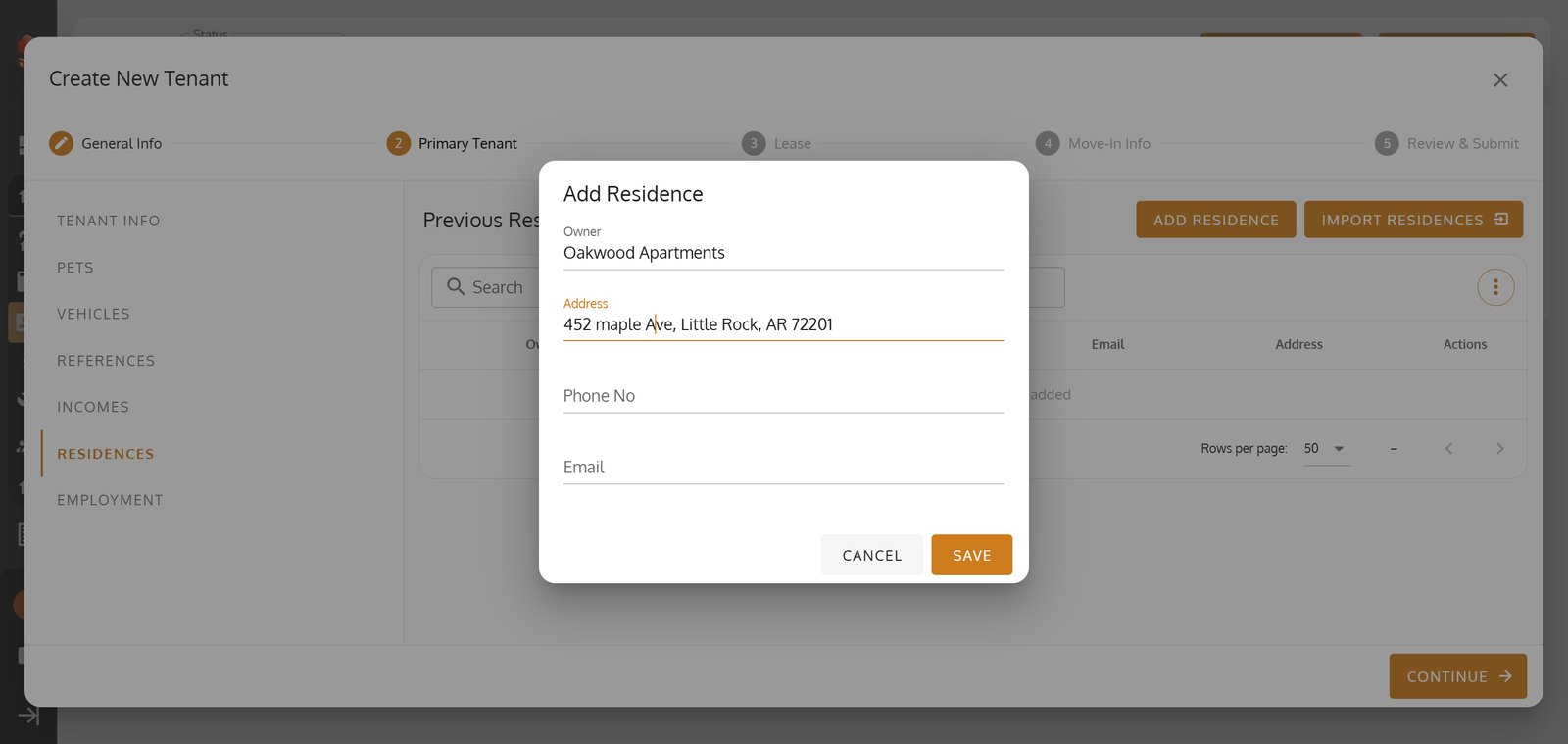
66.
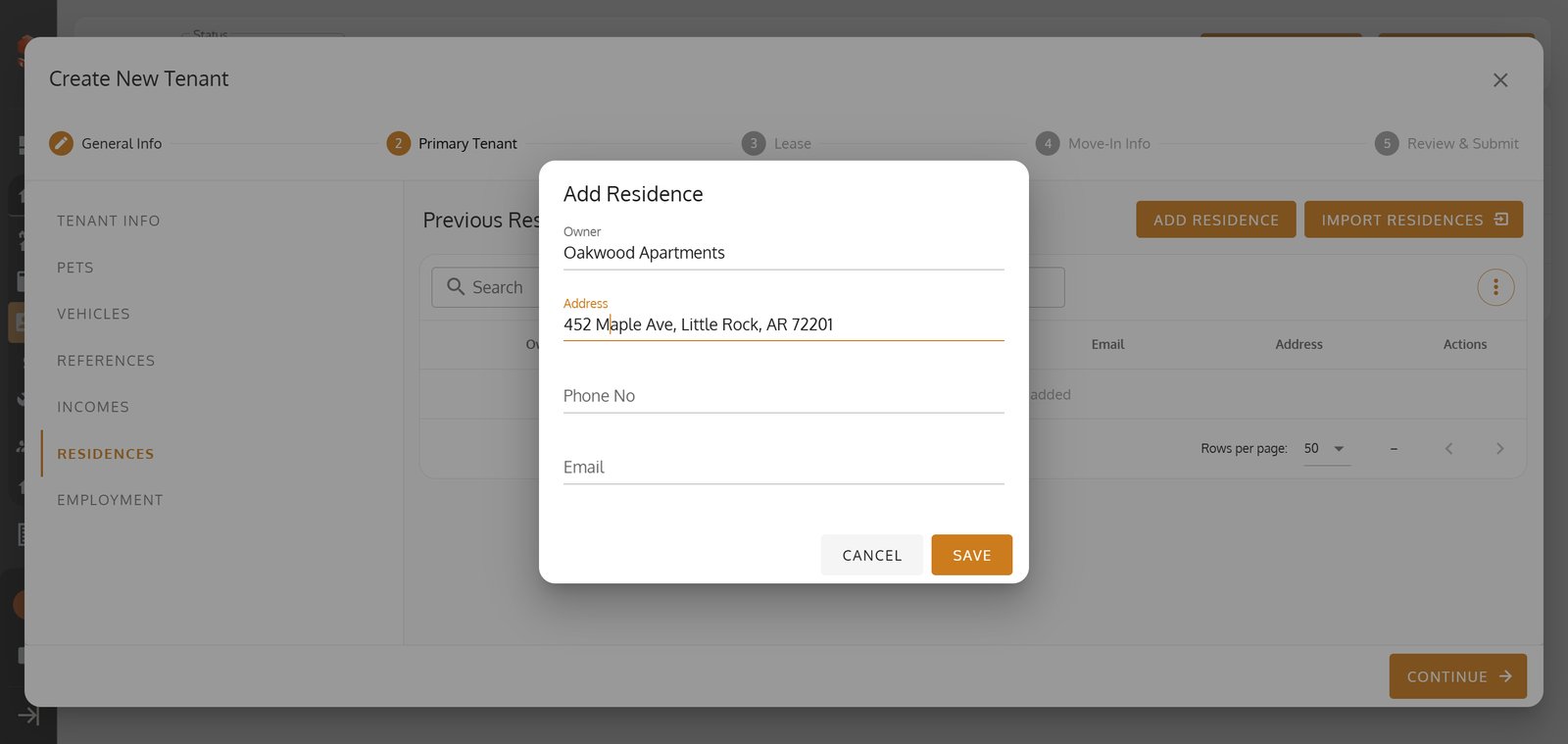
67.
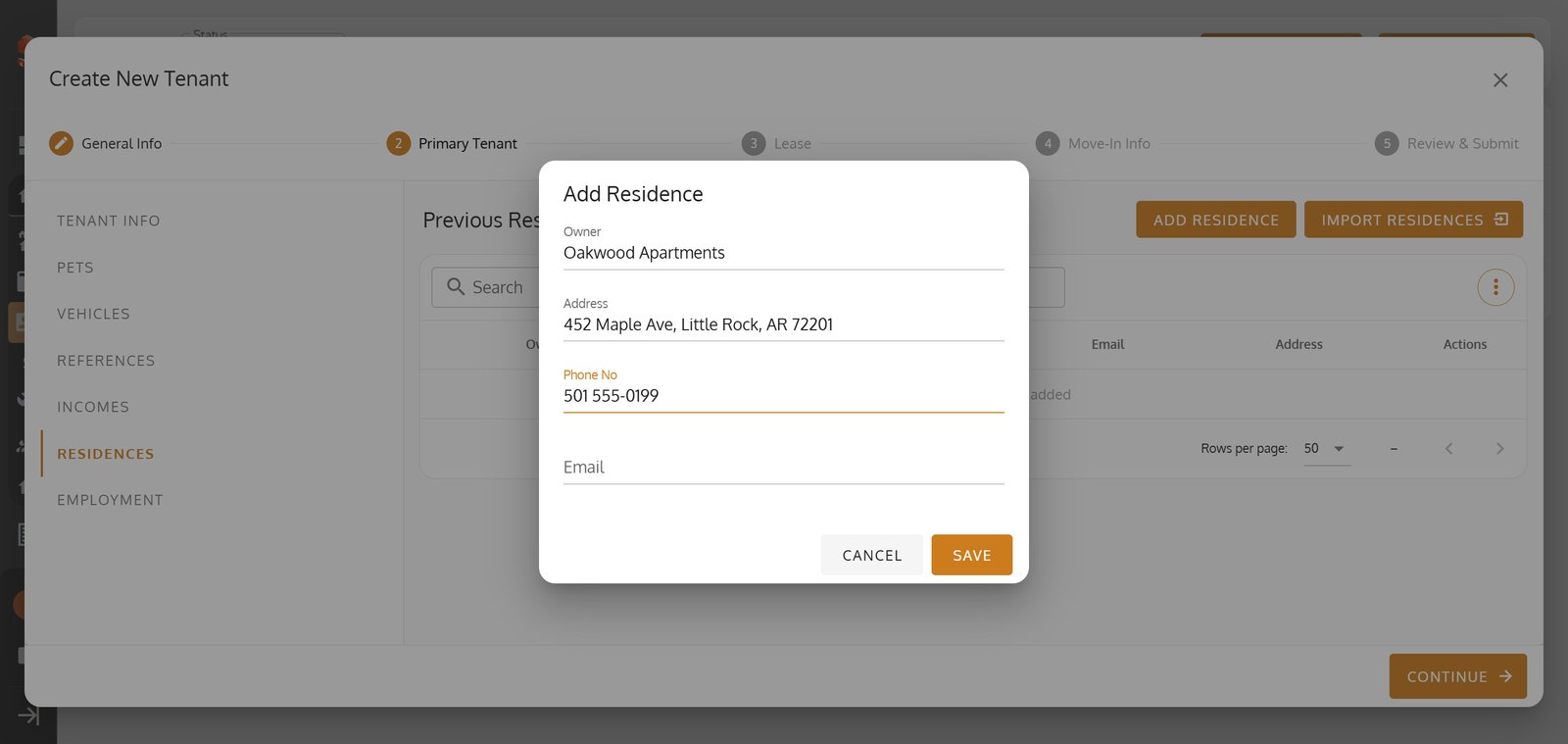
68. Click Save to lock in.

69. Click Employment to open the tab.

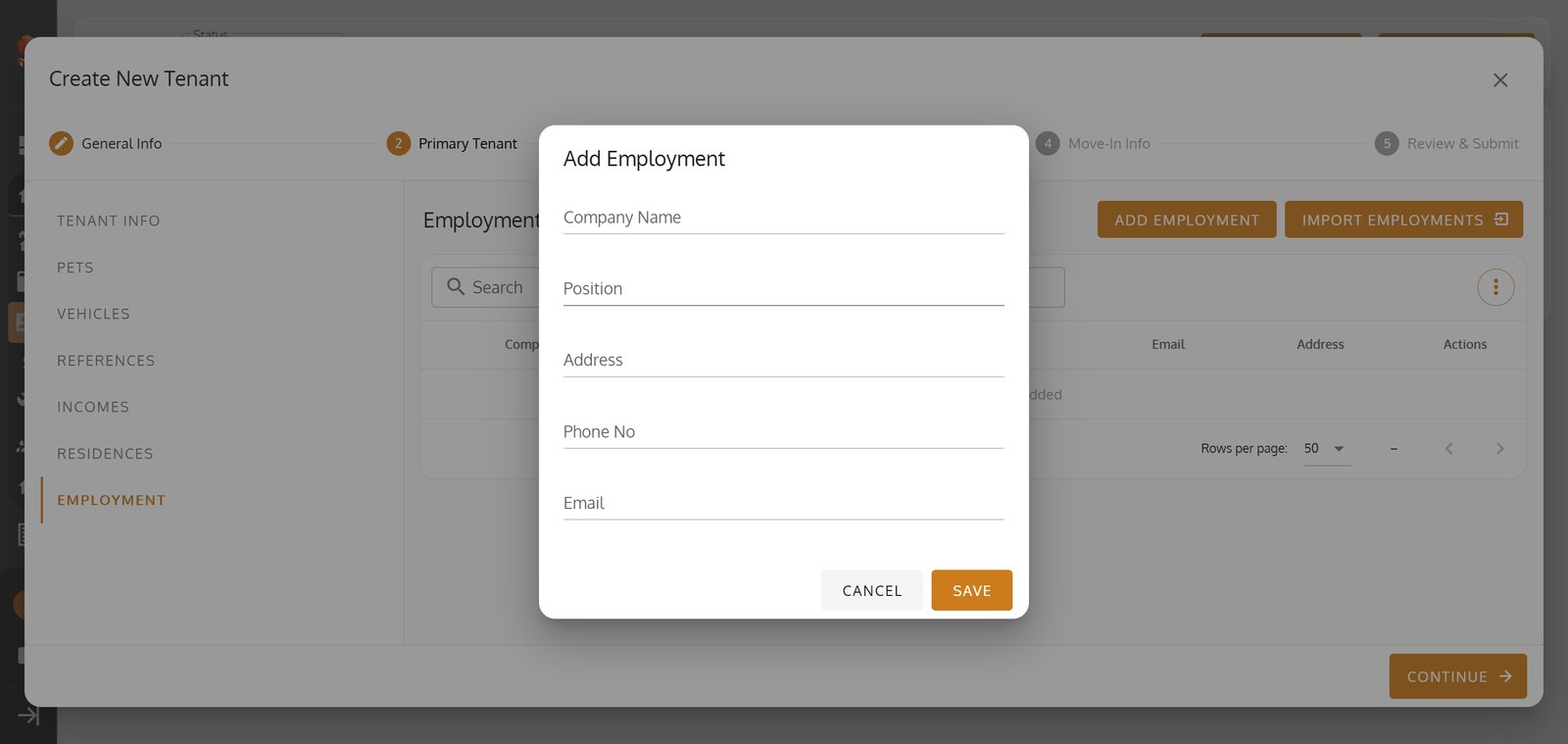
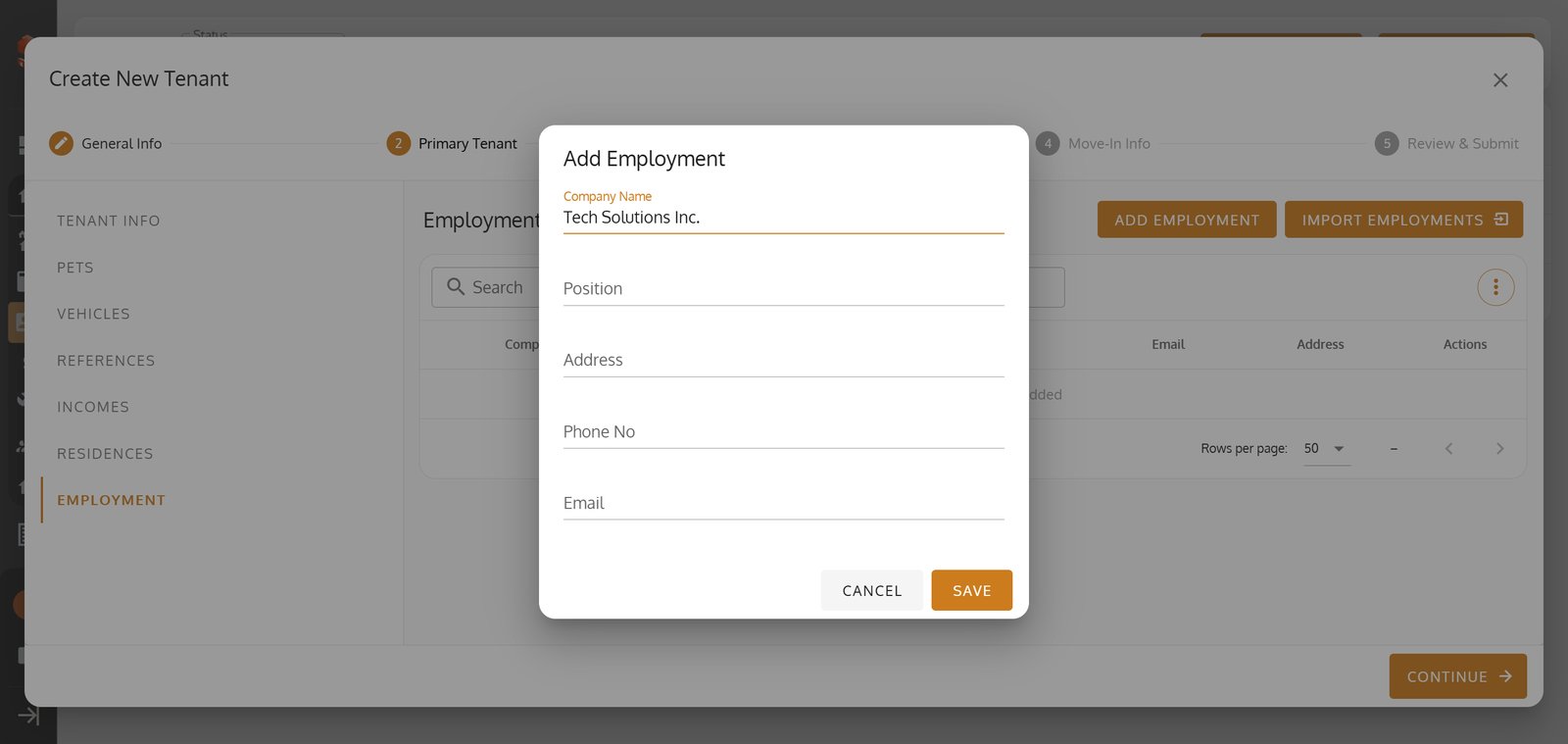
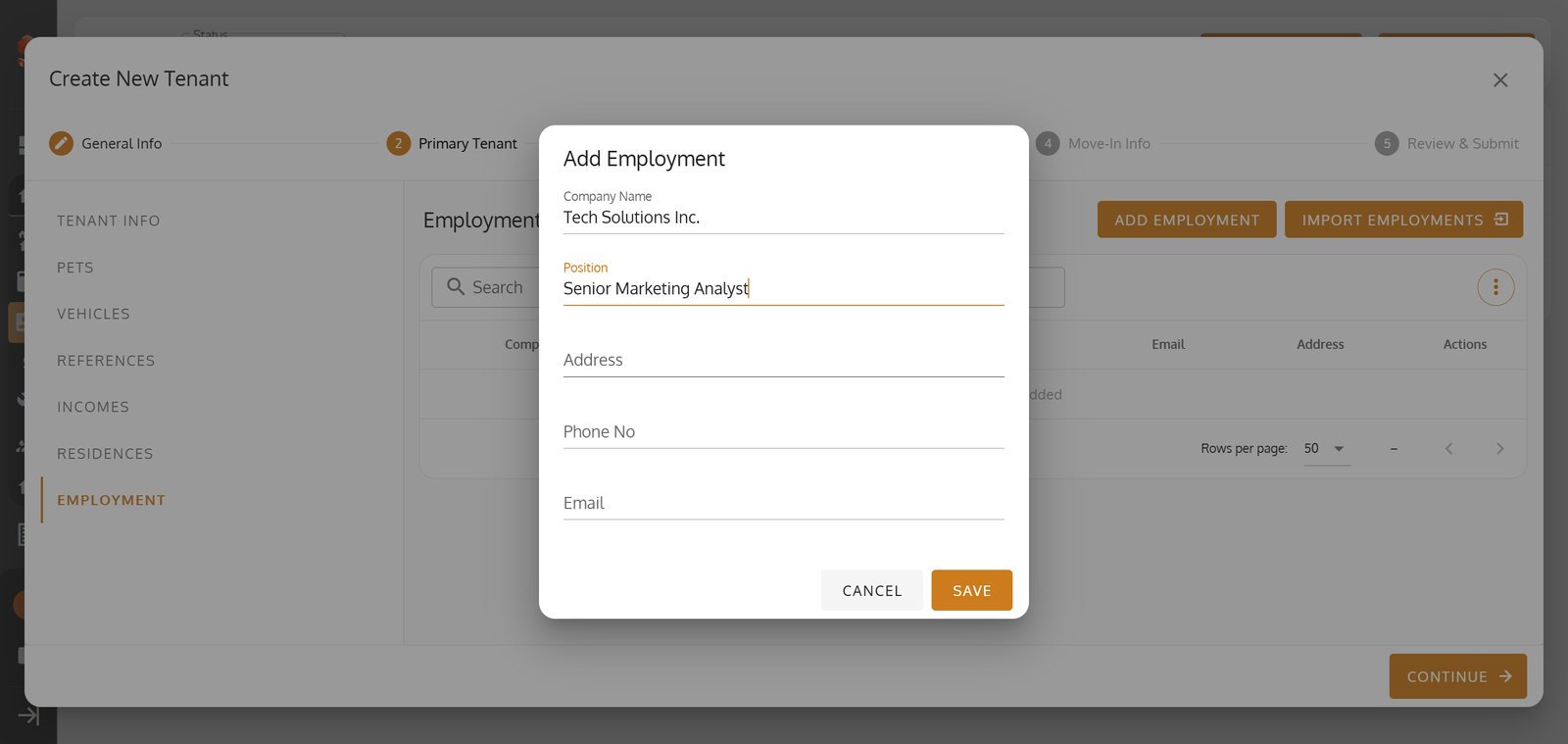
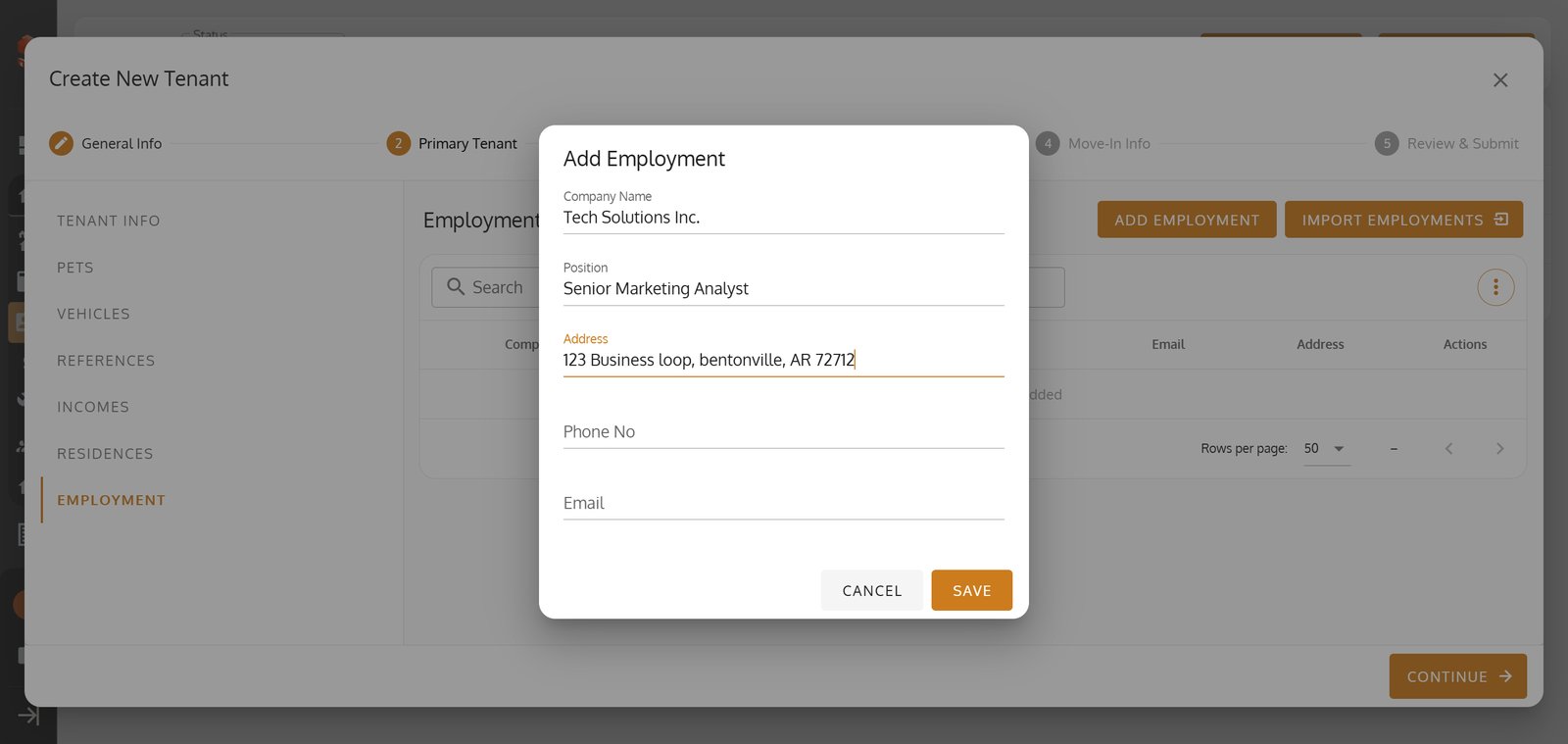
70. Click Add Employment to enter the employment details.

71.
72.
73.
74.
75.
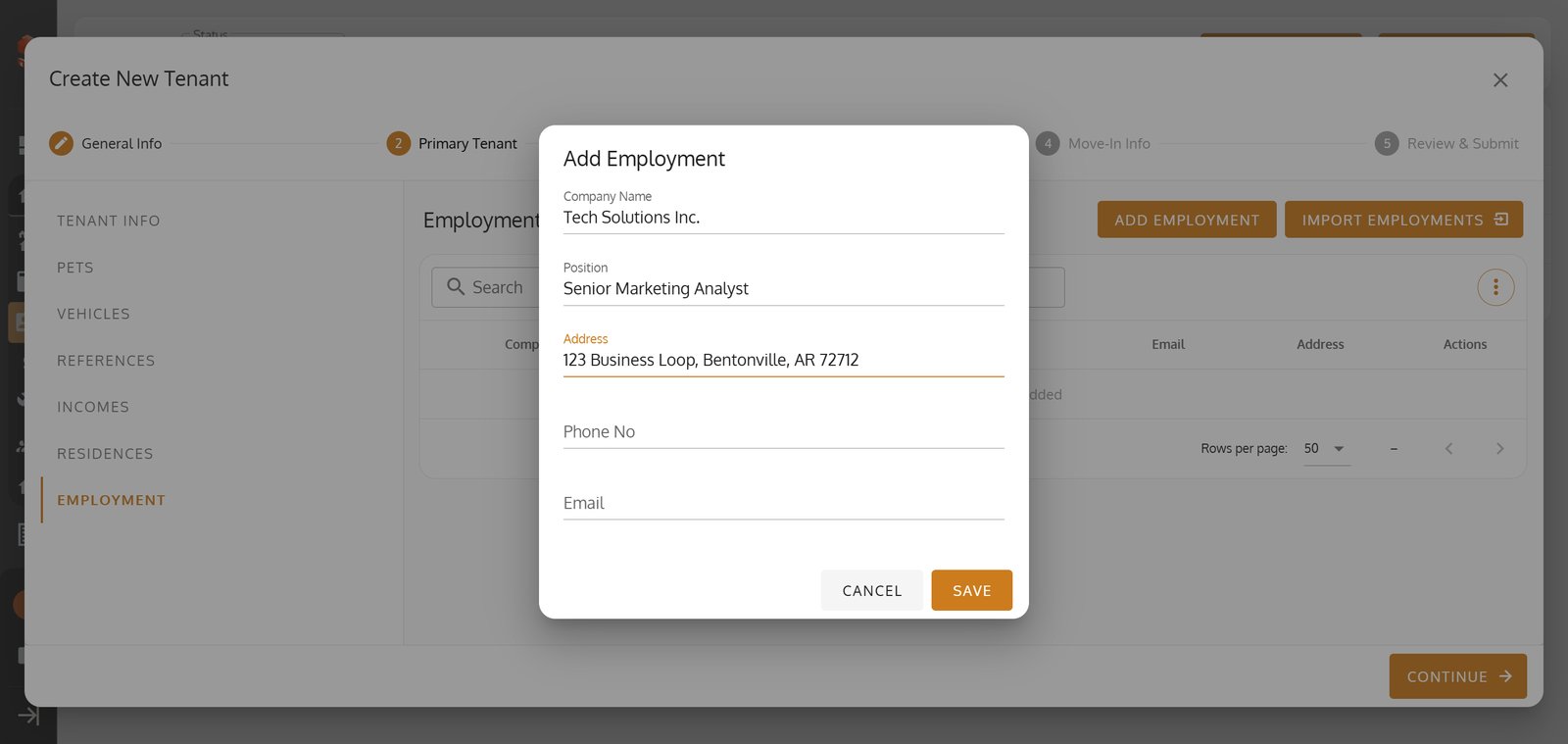
76.
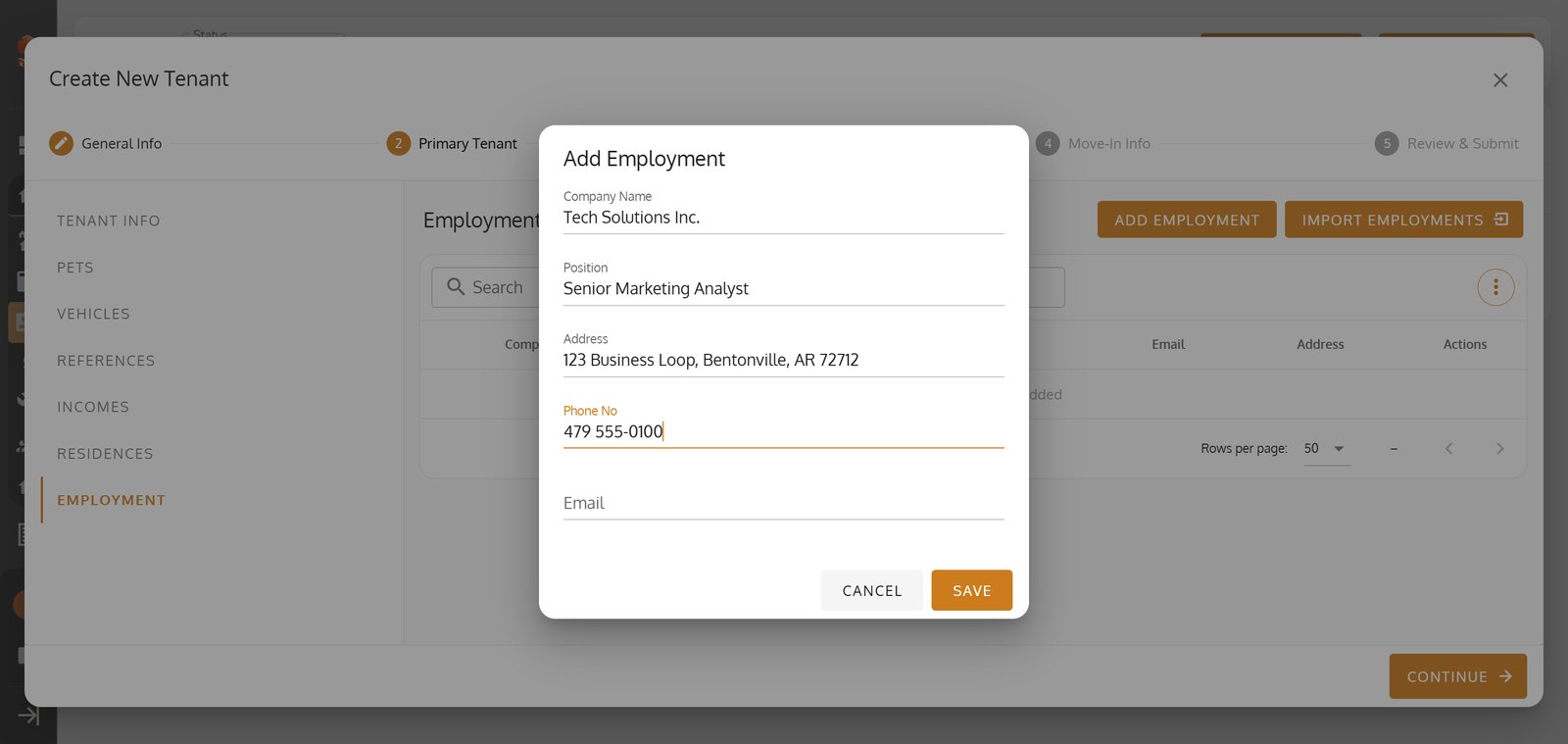
77. Click Save to lock in the details.

78. Click Continue to proceed to the lease.

79. You can renew the tenant’s lease by changing the End Date in the Lease Section.
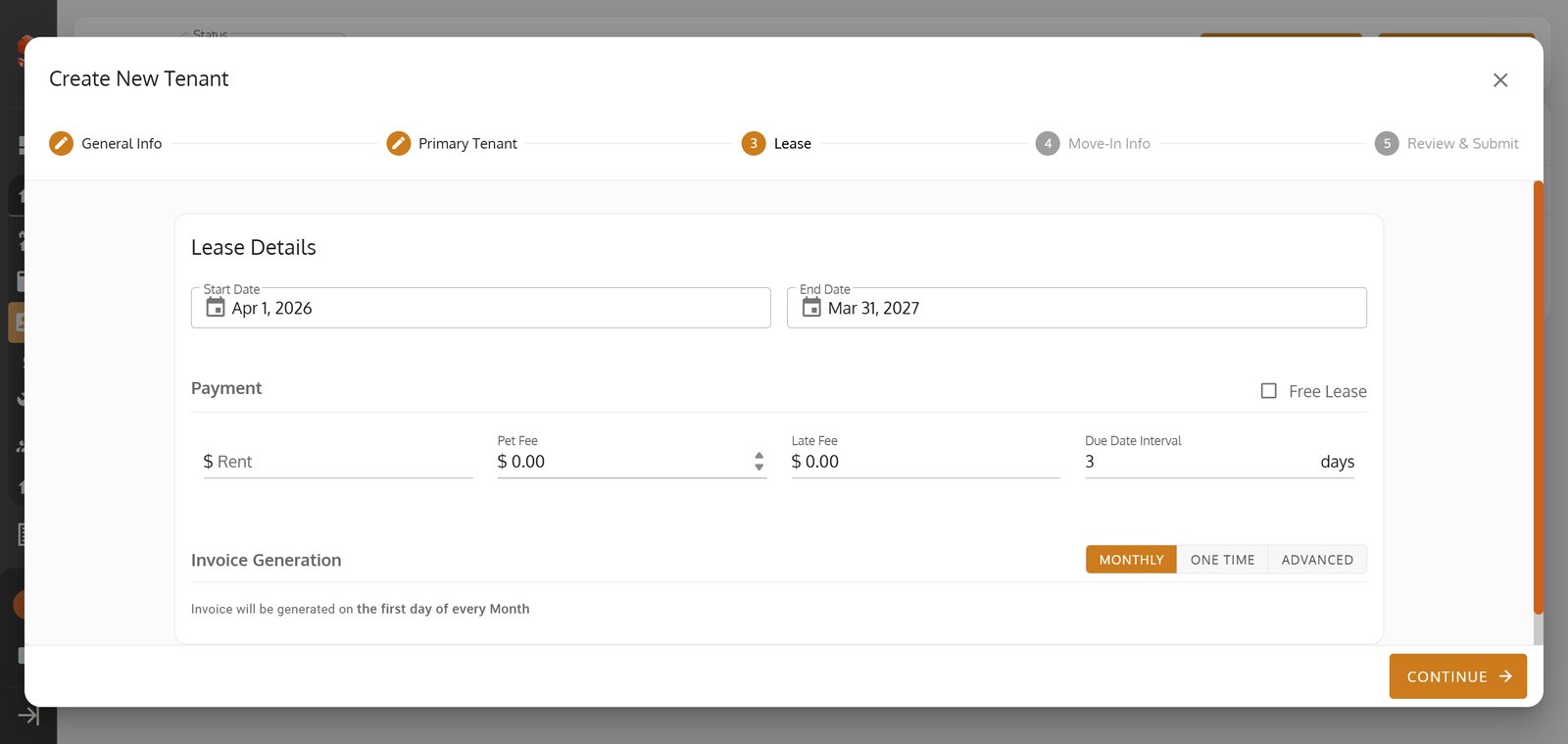
80. To renew a tenant's lease, Update the Renewal Date to reflect the new contractual cycle.
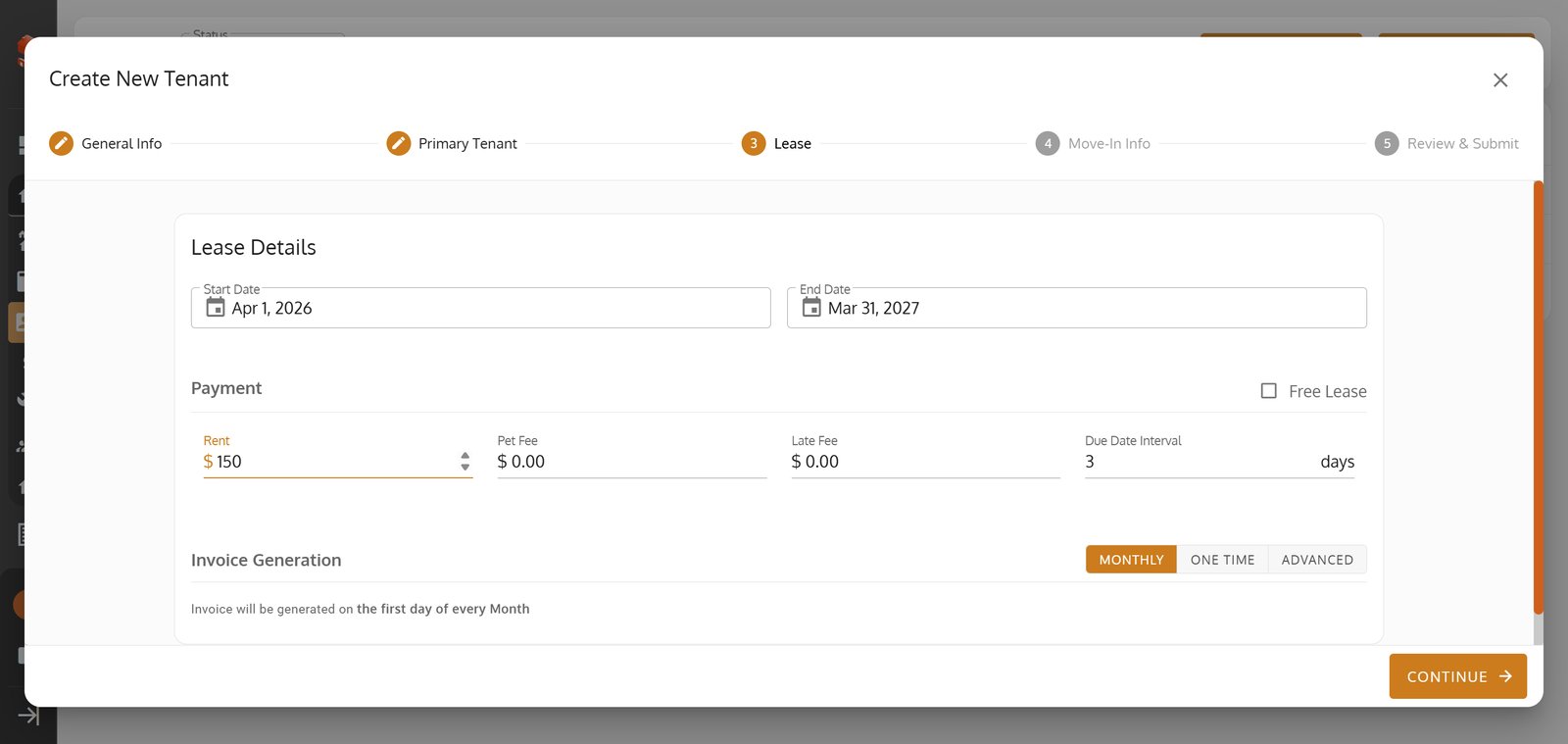
81. Click "Continue"

82. Click Continue to proceed to review.

83. Click Submit to add the new tenant profile.

84.

85.