
Assign, Update Members(Hosts), User Roles and Permissions
Discover how to add new members, update their roles, and manage permission levels for your organization and properties.

Durga B
Last Update 3 mesi fa
1. Start by navigating to the management dashboard

2. Go to the Members section to manage user access within your organization.
Go to the Members section to manage user access within your organization.

3. Add a new member to your organization by clicking the 'ADD MEMBER' button.
Add a new member to your organization by clicking the 'ADD MEMBER' button.

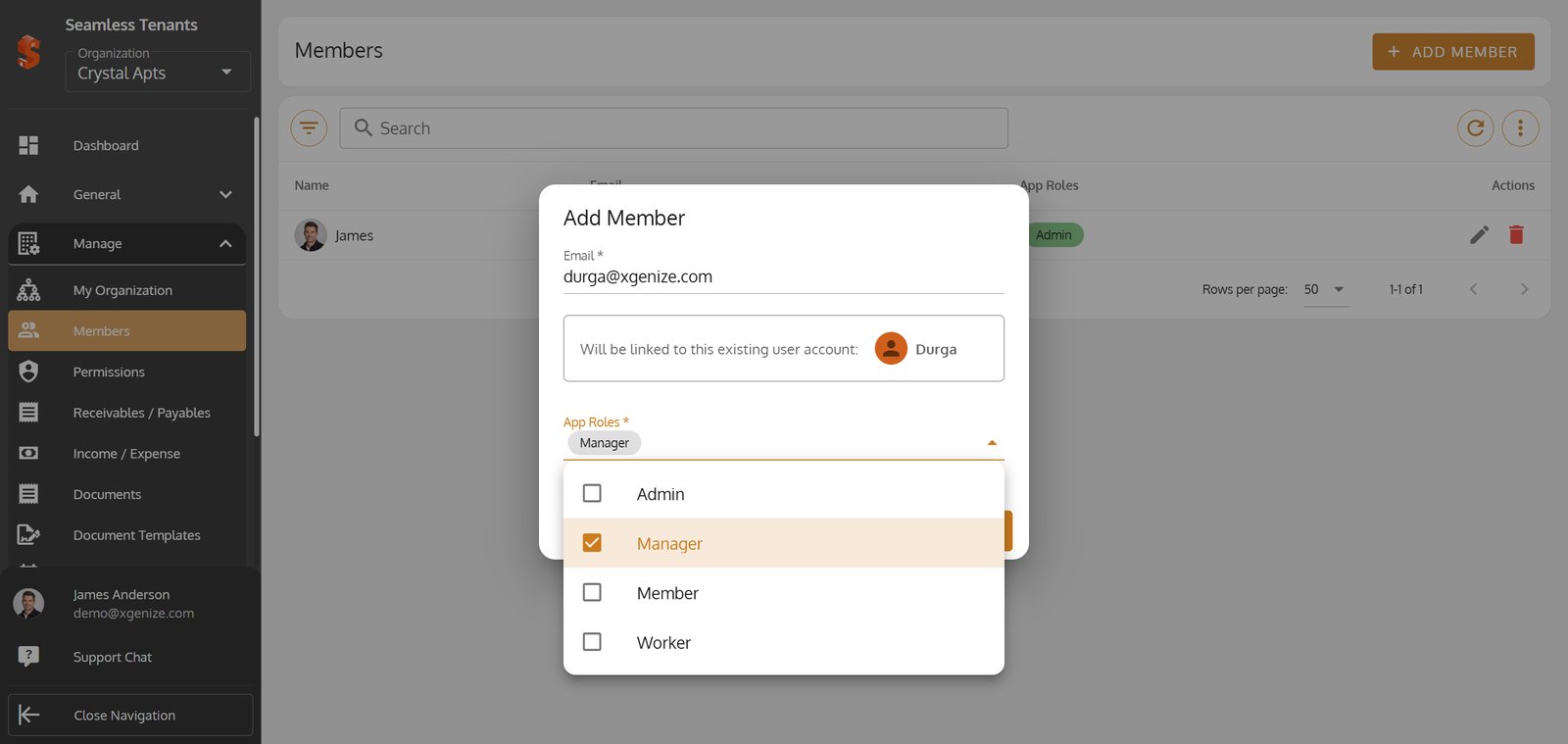
4. Enter the email address of the member you'd like to invite.

5. Select the new member's role using the App Roles dropdown to control their access.

6. Assign the 'Manager' role for streamlined property oversight and team management.
Assign the 'Manager' role for streamlined property oversight and team management.

7.
8.

9. Quickly edit a member's roles or details by clicking the edit icon next to their name.

10. Change or add roles for a user quickly via the App Roles dropdown menu.

11.

12.
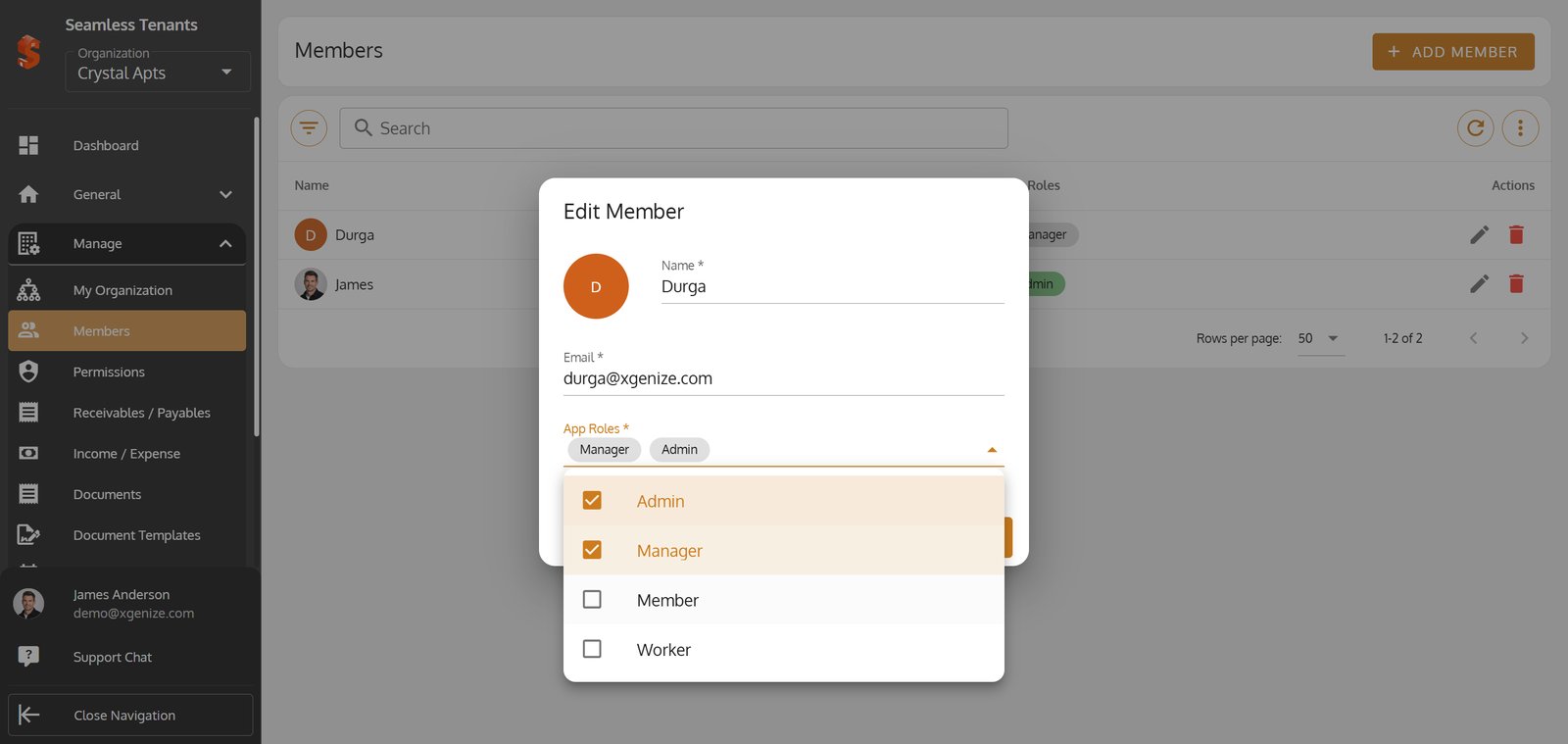
13. Save changes to instantly update the member’s permissions and roles.

14. Access the Permissions section to review or update what each member can do.
Access the Permissions section to review or update what each member can do.

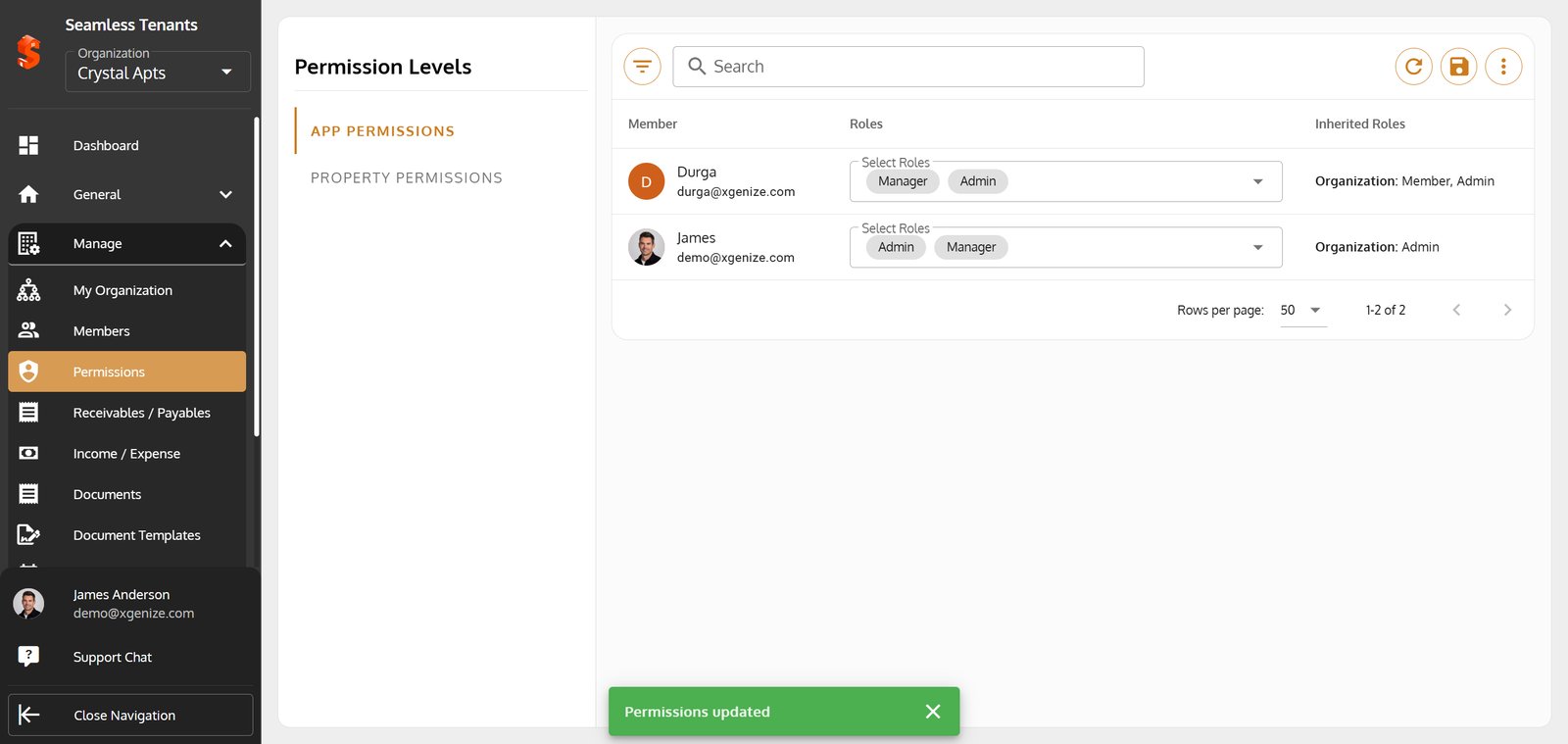
15. Assign or edit roles for users directly under Permission Levels.

16.

17. Select the save icon to finalize assignment and updates of all roles and permissions.

18.
19. Switch to 'PROPERTY PERMISSIONS' to fine-tune access on a property-by-property basis.
Switch to 'PROPERTY PERMISSIONS' to fine-tune access on a property-by-property basis.

20. Choose the property you want to manage permissions for from the 'Select Property' dropdown.

21.

22. Edit property-specific roles to ensure the right level of access per site.

23.

24. Hit the save icon to lock in recent permission changes and keep your team synced.
